Redeem a promo code and extend your trial
Use your voucher or promo code to try the Starter plan for one more month – nothing is charged today.
Did you get a promo code from us? Use it to extend your free trial on the amber platform by one more month. Redeeming it only takes a few minutes.
What you need:
your promo code (e.g. from our email)
admin rights in your amber organization
a payment method, e.g. a credit card – it is only charged if you keep using amber after the free period
Note: Only an administrator of your organization can open billing. Whoever registered amber for your company is usually an admin. If you can’t see the menu item, contact that person.
Redeem your promo code
Step 1 – Open the company settings
Click your profile (your initials and name) and select “Company settings”.
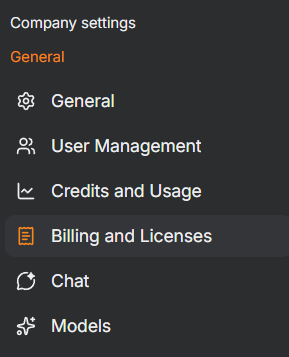
Step 2 – Go to “Billing and Licenses”
In the navigation, under “General”, select “Billing and Licenses”.
Step 3 – Choose the Starter plan and one license
Select the “Starter” plan. The button then shows “Selected ✓”.
Leave “Number of licenses” at 1.
Click “Continue to payment”.
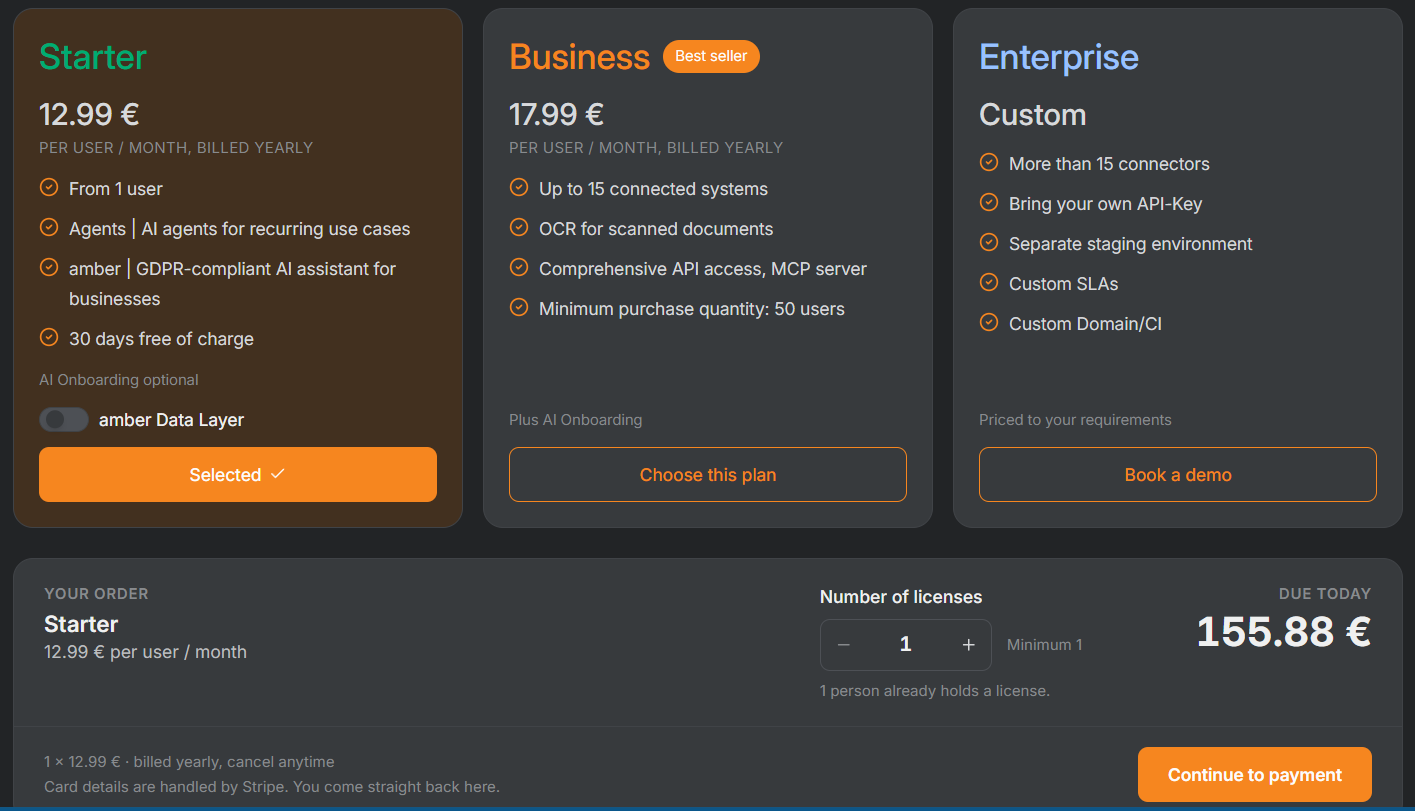
Don’t be put off by the amount shown: you’ll enter your promo code in the next step.
💡 Tip: The number of licenses determines what you’ll be charged after the free period. One license is enough to extend your trial.
Step 4 – Enter your promo code
You’ll land on the checkout page of our payment provider Stripe. Enter your code in the “Add promotion code” field and confirm it.
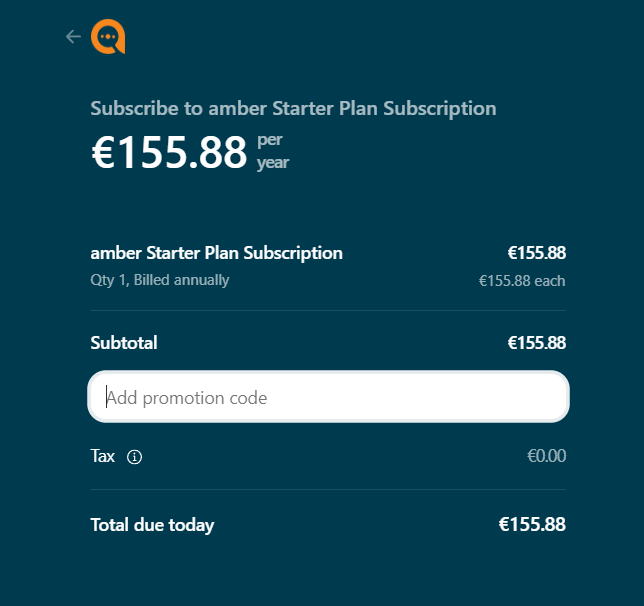
Step 5 – Check that the code has been applied
Your code now appears below the subtotal, and “Total due today” shows €0.00.
⚠️ Important: Only complete the checkout if it says €0.00 here. If the amount hasn’t dropped, contact your amber contact person or support@amber.de.
Step 6 – Enter your payment details and confirm
Enter your payment details and complete the checkout. You’ll then be taken straight back to amber – your trial is now extended.
After the free period: keep using amber or cancel
If you do nothing, your Starter subscription automatically continues as a paid plan after the free period. If you don’t want to keep using amber, cancel before the free period ends:
Open “Company settings” → “Billing and Licenses” (as in steps 1 and 2).
Click the cancel button and confirm the cancellation. If you can’t find it, contact your amber contact person or support@amber.de before the free period ends – we’ll take care of the cancellation.
Frequently asked questions
Why do I need to enter payment details if €0.00 is due today?
So that your access continues without interruption after the free period, in case you want to keep amber. Nothing is charged until the free period ends – and only if you haven’t cancelled by then. Your card details are handled by our payment provider Stripe.
I accidentally subscribed to a paid plan. What can I do?
Contact your amber contact person or support@amber.de – we’ll take care of it.
To see everything you can try out on the amber platform, check out the article
→ ✅ amber Platform – Features Overview.
Was this helpful?