SQL connector: Synchronize your database schema
Bring new, changed and deleted tables into amber with one click.
Has your database changed? With the new Sync feature in the SQL connector, you can pull schema changes straight into amber: new tables and columns, deleted tables and changed structures. This feature is available to admins.#
How to start a sync
Open Company Settings → Connectors → Databases and select your SQL database.
In the Tables section, click Sync.
amber compares the schema of your database and marks every change in the table overview.
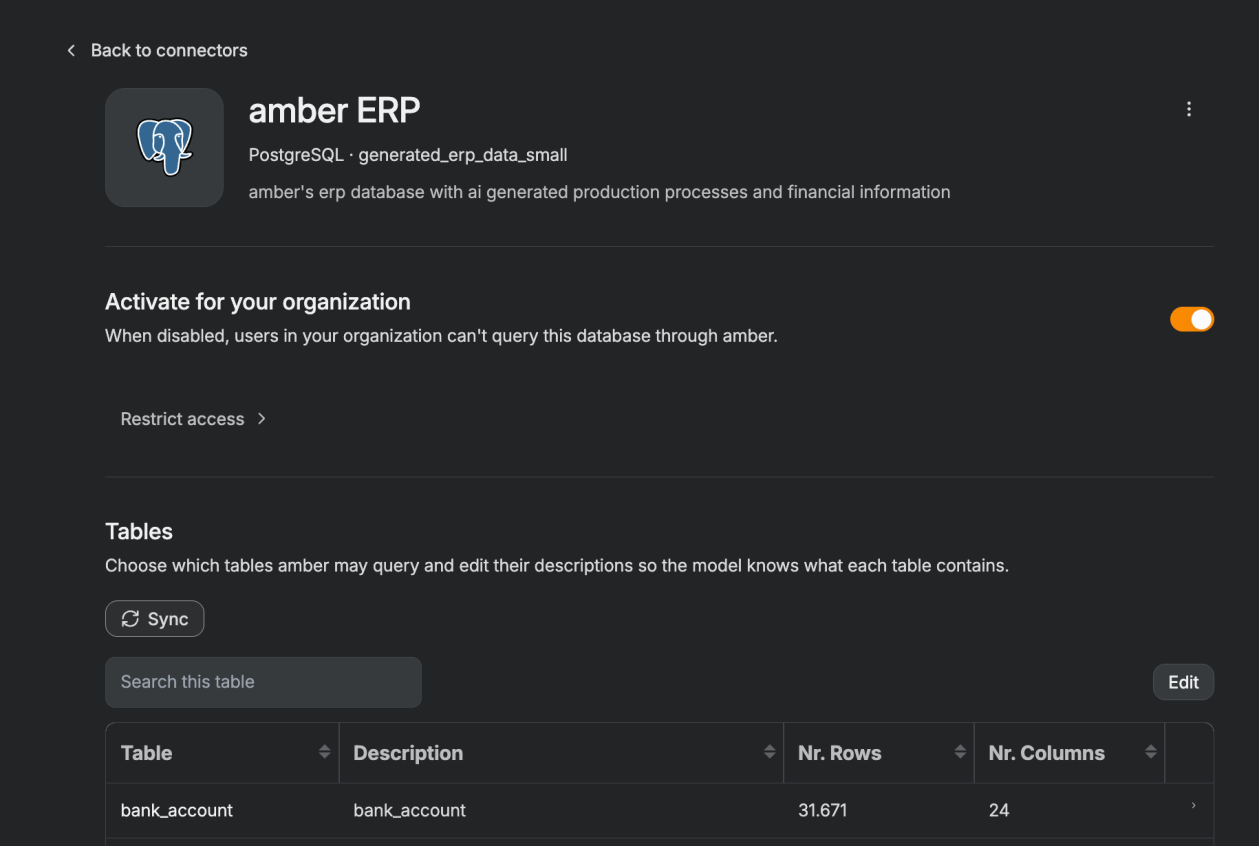
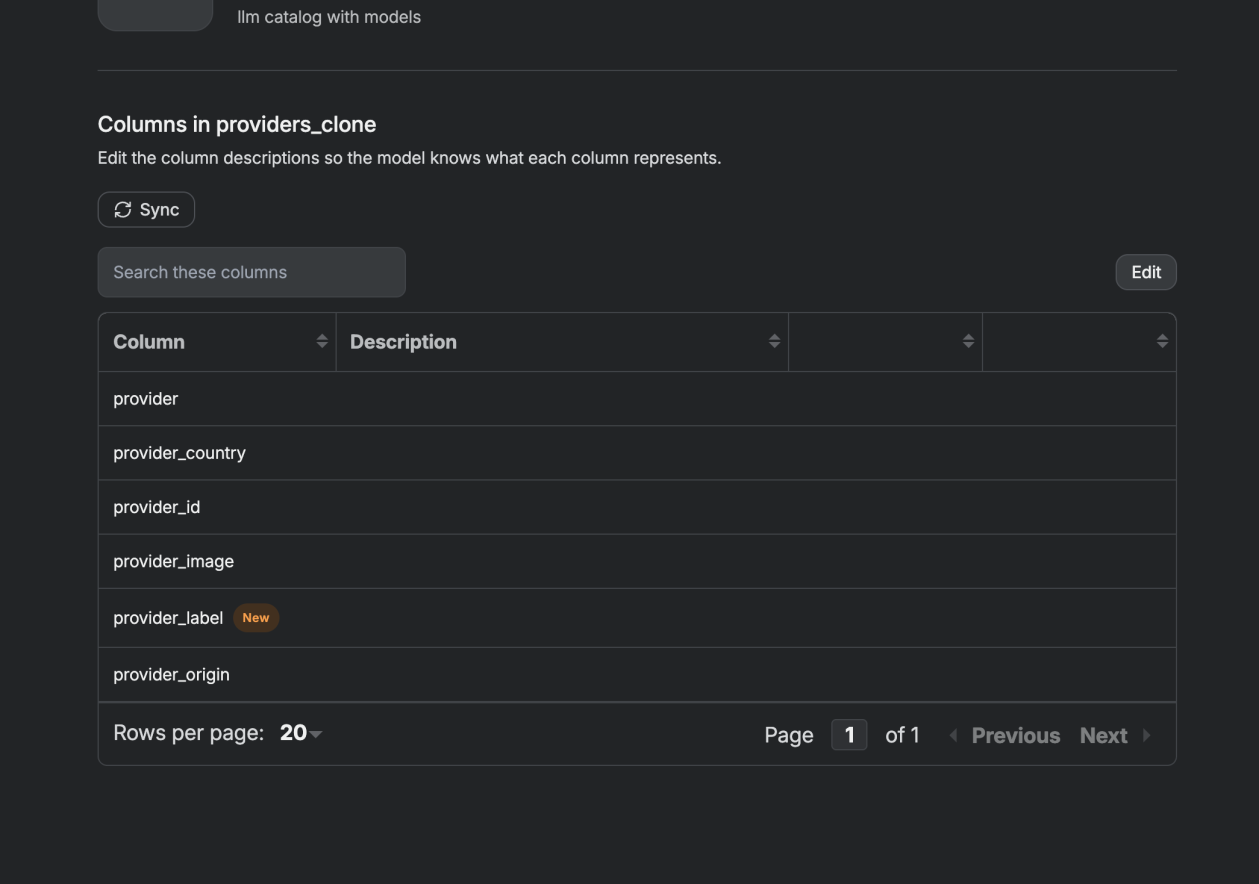
You will also find the Sync button in the column view of each table.
What a sync changes
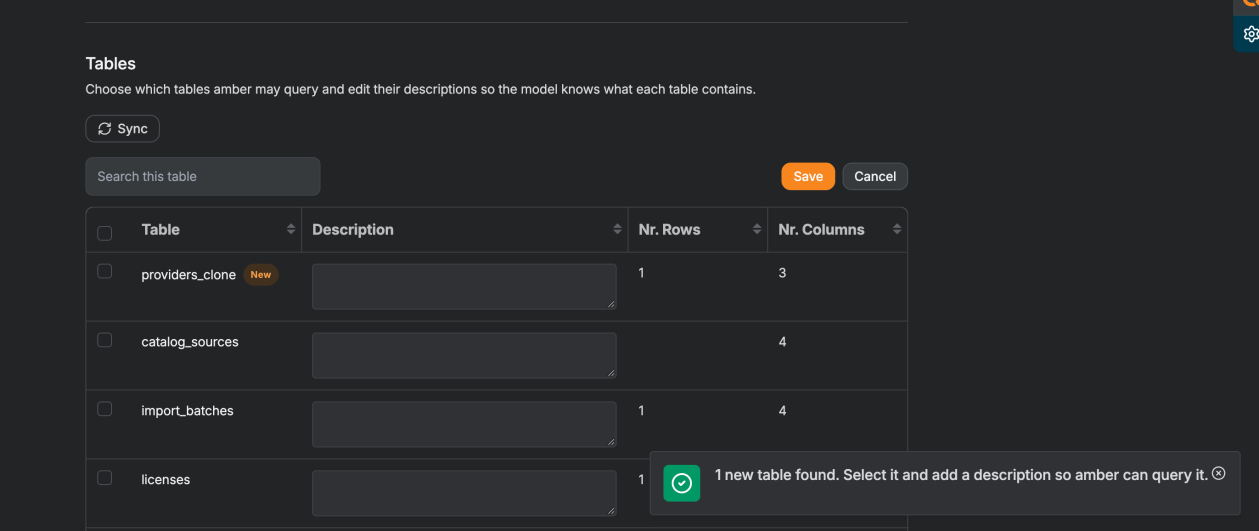
New tables and columns are detected automatically and marked New. New tables are not activated yet: to let amber query them, select them and add a description (see next section).
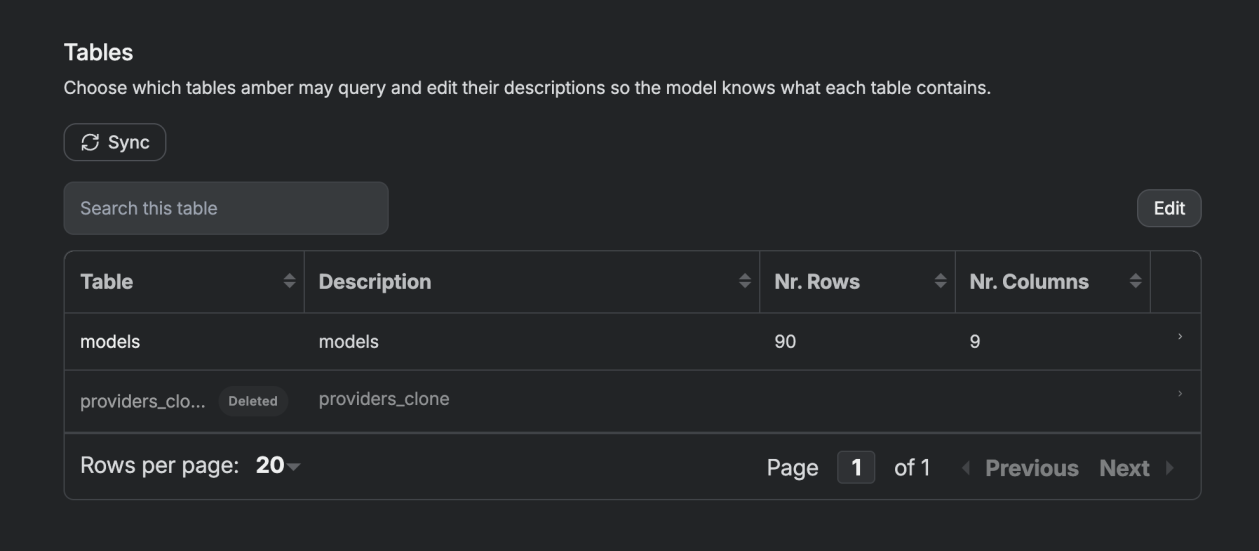
Deleted tables are marked Deleted and are no longer considered by amber.
Changed tables and columns are updated automatically and marked Modified.

Activate new tables
Click Edit above the table overview.
Tick the checkbox next to each new table.
Add a meaningful description for every new table.
Click Save.
Tip: Briefly describe what data the table holds, e.g. “All customer orders since 2020 with order number, customer, date and amount.” This tells amber which table to look in to answer your question. You can describe new columns the same way in the column view.
Good to know
First sync already done: We may have already run the first sync for you. In that case you won't see badges like New or Modified. Still check your table overview and activate any new tables so amber can work with them.
When to sync: Run a sync once as soon as possible. After that, only run it on demand, whenever your database schema has changed.
Multiple databases: Each sync covers one database. If you have connected several databases, sync each one separately and activate its new tables.
Haven't set up the SQL connector yet? Follow this guide: Set up SQL Database (Beta)
Was this helpful?