🧩Browser Extension
The amber browser extension enhances your browsing experience and lets your discover amber’s capabilities directly within your web browser. Conveniently available on all pages, you will no longer need to navigate to a dedicated Amber page in your browser, but you can directly search and chat while staying on your web page.
The extension features two tabs:
Chat tab: provides the AI Dialogue, and let’s you use web search, as well as company knowledge and chatting with agents.
Search tab: let’s you use amber
Accessing the Extension:
1. If you are new to the amber extension, you will need to install it.
PUT CHROME STORE LINK HERE
Your IT Admin might have installed the extension already for you – in this case, you’re good to go and you can directly jump to the next step
2. After installing, you can access the extention from any page. Navigate to the extension icon (puzzle piece) in your browser’s navigation bar and select “amber”.
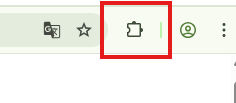
To have the extension always accessible, simply navigate to the Puzzle Piece logo and click the “pin” icon - this will pin the Amber icon next to the Puzzle piece icon and you’re ready to go with a single click.
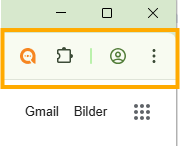
Another method to quickly open Amber are keyboard shortcuts, regardless of which page you’re currently on: For Windows users, press ALT+S; MAC users: press OPT+S. This combination will also open the sidebar.
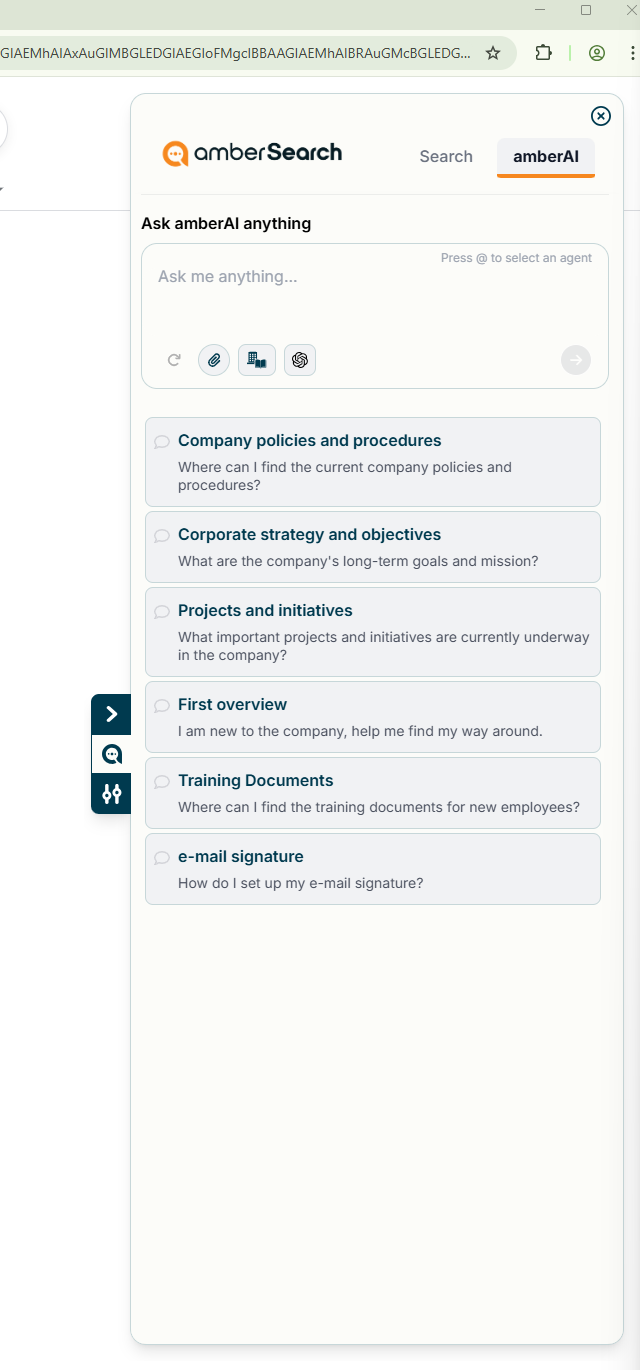
Once active, the extenion will appear as a sidebar:
How to use the extension
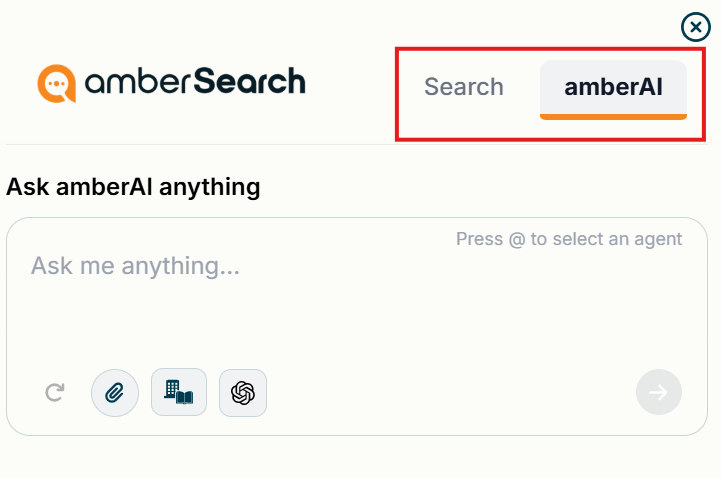
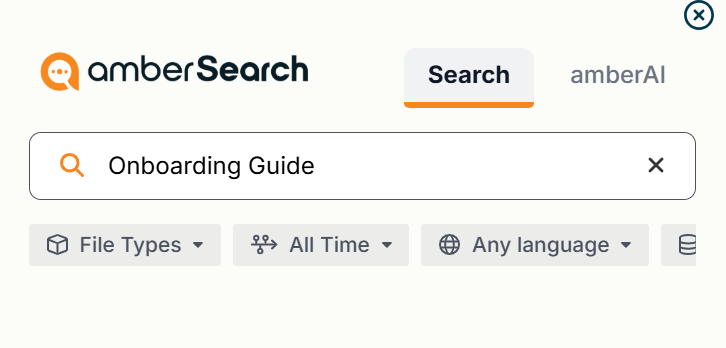
The extension has two tabs: Search and amberAI. You can switch between both modes by simply clicking on the tab, the active tab will be shown with an orange bar.
AmberAI
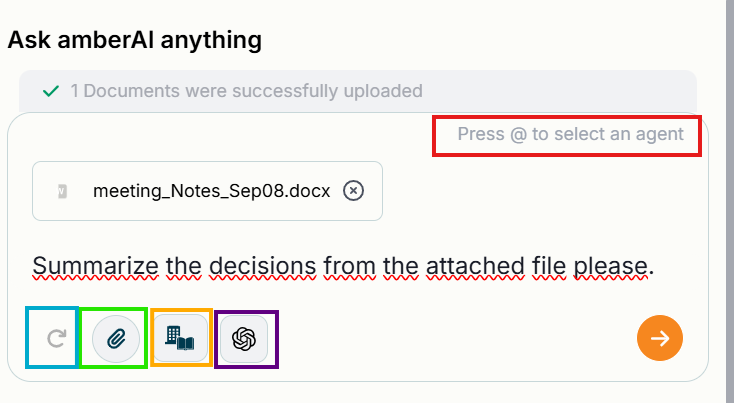
When in the amberAI mode, you can enjoy the full flexibility of Amber, just like on Desktop or in the Browser version.
Start a chat or call an agent by typing @ and select the appropriate agent for your query, attach files and switch between Company Knowledge mode or AI Dialogue. Of course, you also have the option to activate Web Search and select a different LLM. To start a new chat, simply click the refresh button.
Amber
Just like in the browser and desktop versions, you can search for your documents from the extension, with all filters. You can also see your lately interacted documents and start a Document Chat
Settings and Navigation
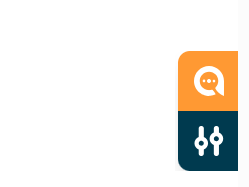
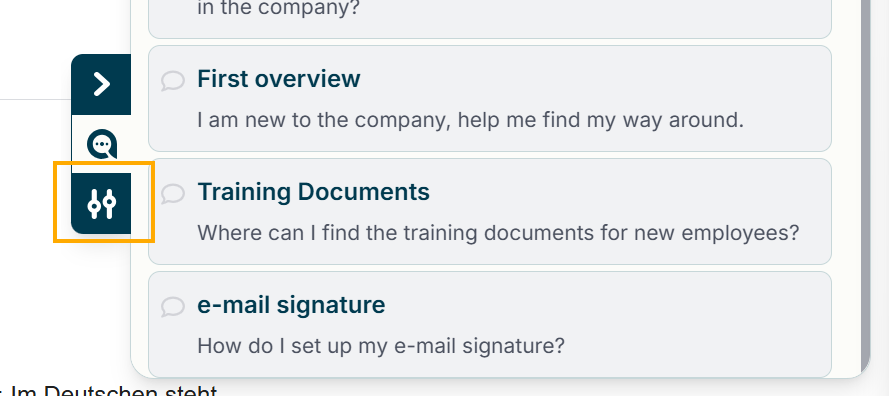
The extensions features three buttons for navigation and settings.
Minimizing the extension
If you want to minimize the extension, simply use the arrow and the extension will move to the edge of your browser window.
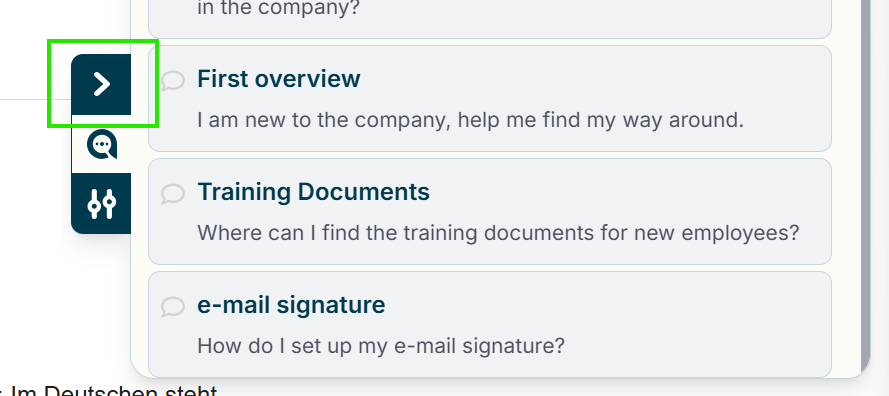
Once minimized, you can easily expand it again by clicking on the amber logo.
Settings
To access the settings, click on the Setting menu
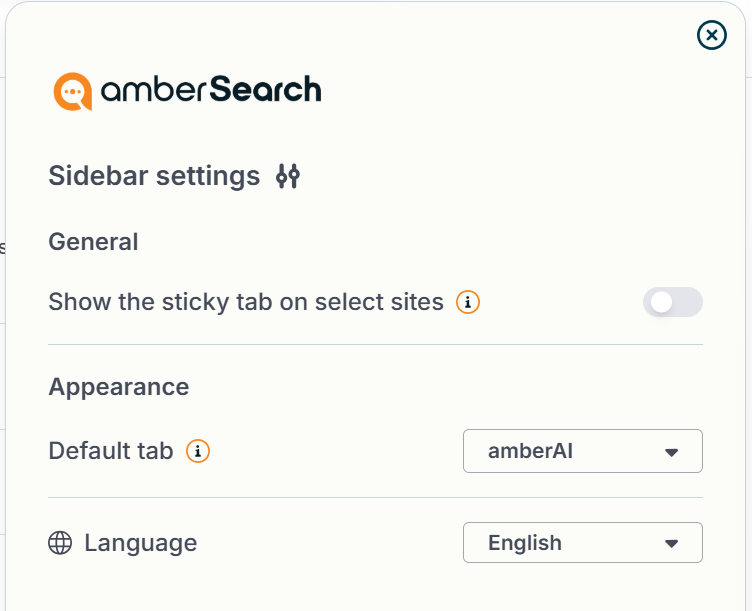
Here you have several options to personalize the extension further, such as switching to your preferred language.
You can also choose on which tab the extension opens for you. Simply navigate to the settings tab and “Appearance” to select either the Chat Tab or the Search Tab as the default. This makes it even faster for you to perform actions with amber.
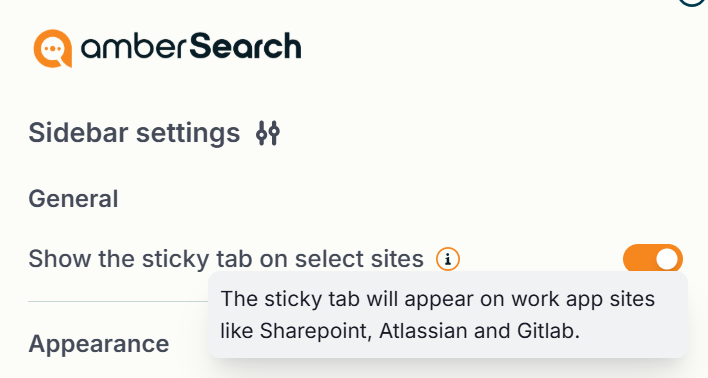
Use the toggle under “General” to show the sidebar on work app sites such as SharePoint, Atlassian or Gitlab.
Permissions
Our extension requests Read/Write permissions for all websites you visit. This is necessary in order to provide features such as making the Amber sticky appear on workplace apps and to give you a seamless experience.
Was this helpful?