SetUp DocuWare Client
The goal of these instructions is to enable amber to access the Docuware environment. For that amber needs a Trusted Application User (TAU) and a regular account with read and download rights. In the following, the necessary steps are visually described.
Share the base URL of the system with amber
If Docuware is running in OnPremises, make sure that amber can access the Docuware Server network wise.
Set up a Trusted Application User (TAU) for amber
Follow the instructions in this office Knowledge Article from Docuware
https://support.docuware.com/en-us/knowledgebase/article/KBA-36888
Be aware that the TAU should be granted access to each relevant File Cabinet!
Share the credentials of TAU with amber
Set up an account with Read and Download Access rights in all relevant cabinets
Share the credentials of this account with amber
Accounts Linking for end users: there are two ways to allow the end users to link their amber accounts with the Docuware accounts, automatically based one e-mail attribute or via OpenID Connect flow
Automatic Accounts Linking. If the e-mail attributes are maintained at Docuware accounts this is the easiest way to go for. There is no need for further settings changes from the Administrators and the end-users will be able to search for Docuware contents seamlessly without having to extra connect their accounts manually.
OpenID Connection through App Registration
Navigate to the Settings Page in the Docuware Web App
Scroll down to Integrations and select App Registration
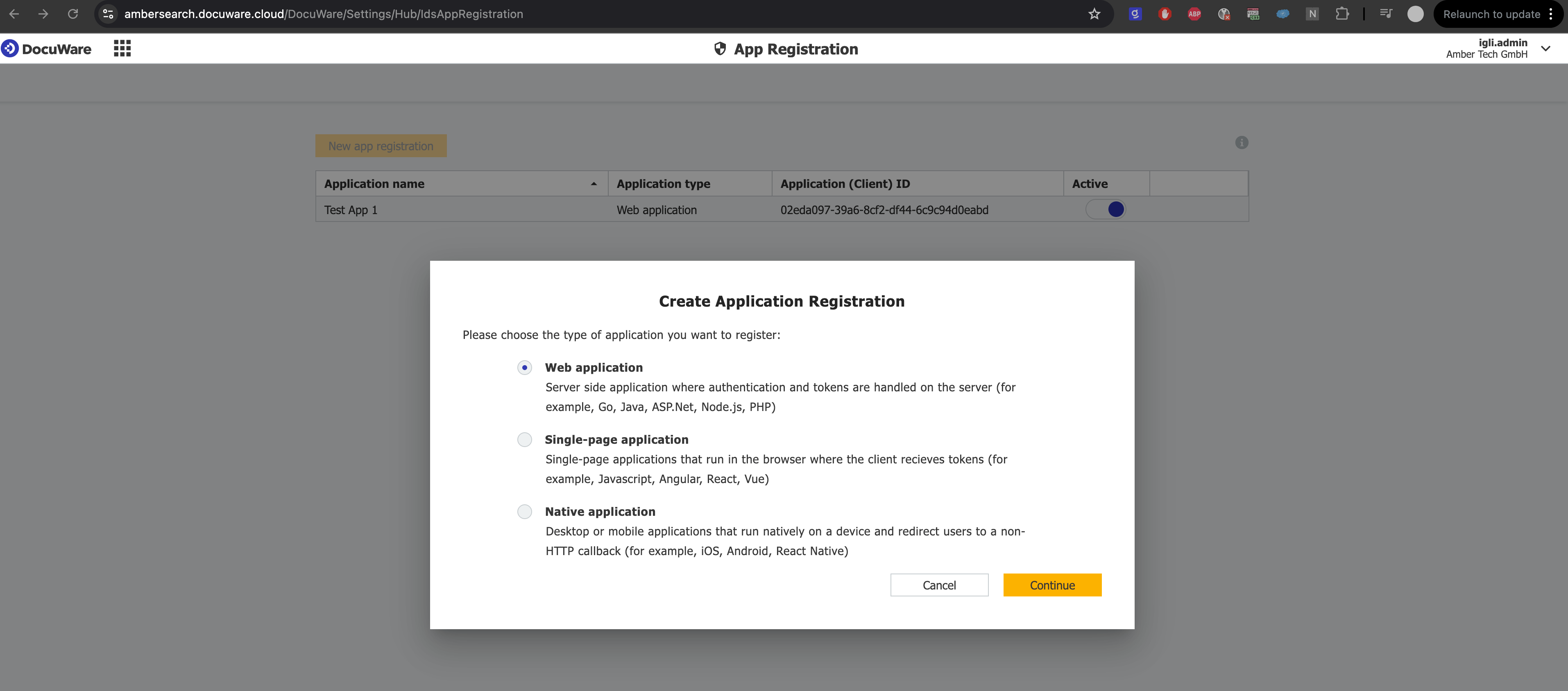
Create a new app by clicking New App registration. Then select Web application in the modal according to the following screenshot. Then press Continue.
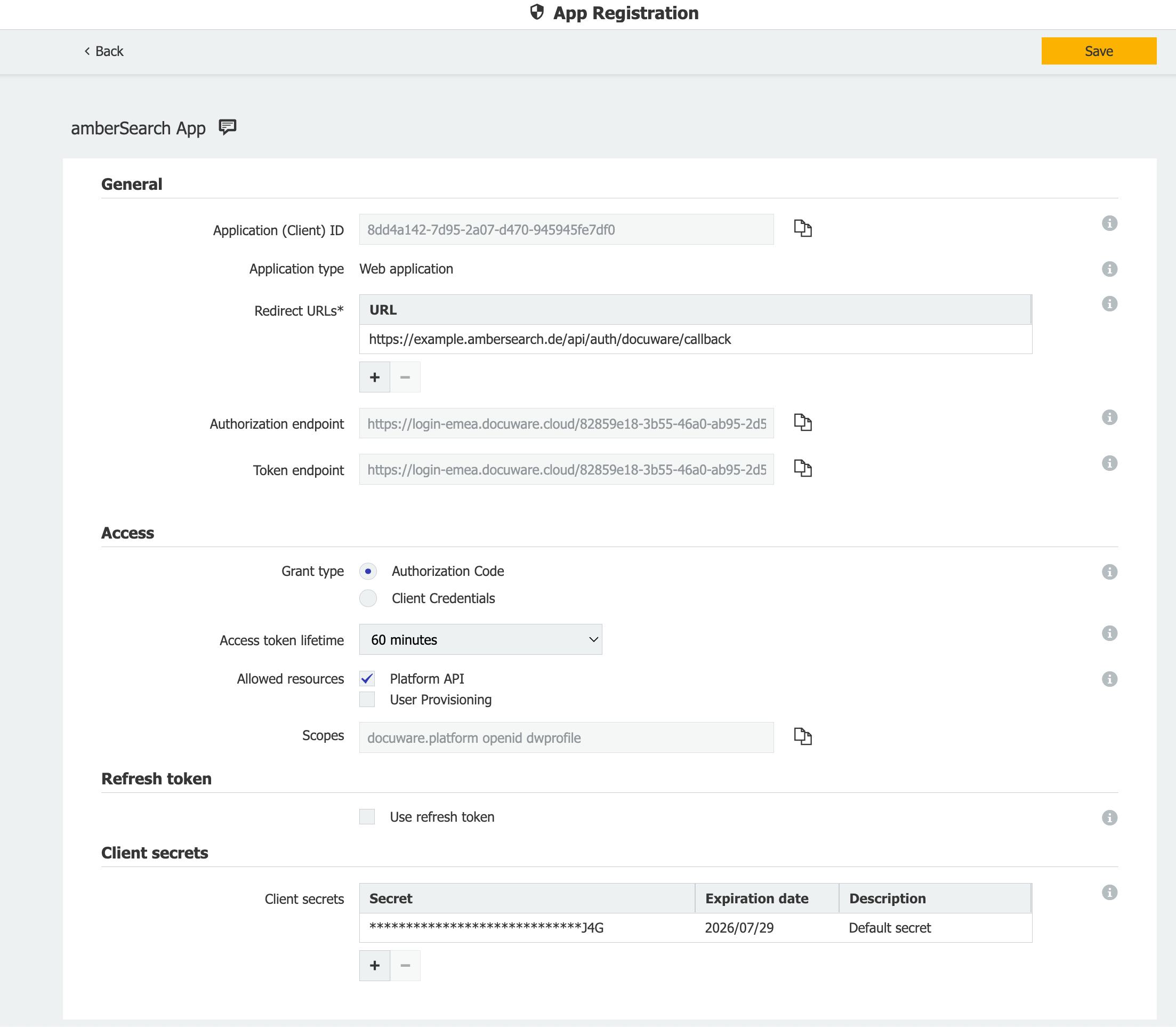
Add Redirect URLs. Make sure to replace customerName according to your amber tenant URL.
https://customerName.ambersearch.de/api/auth/docuware/callback
All other settings should be kept as default values.
Save the configuration and copy the Client Secret displayed in the modal.
Provide the following values to amber
Application (Client) ID
Client Secret
Was this helpful?