SetUp box Client
This manual should be executed by an administrator of the Box tenant. In order to give amber access to the contents in Box and allow certain APIs to be called a Custom App should be created
Please note that in order to authenticate the created Custom Apps access to the Box "Admin console" is needed.
Steps to create the Custom App for amber.
Navigate to Dev Console.
Click "Create Platform App"

Select "Custom App"
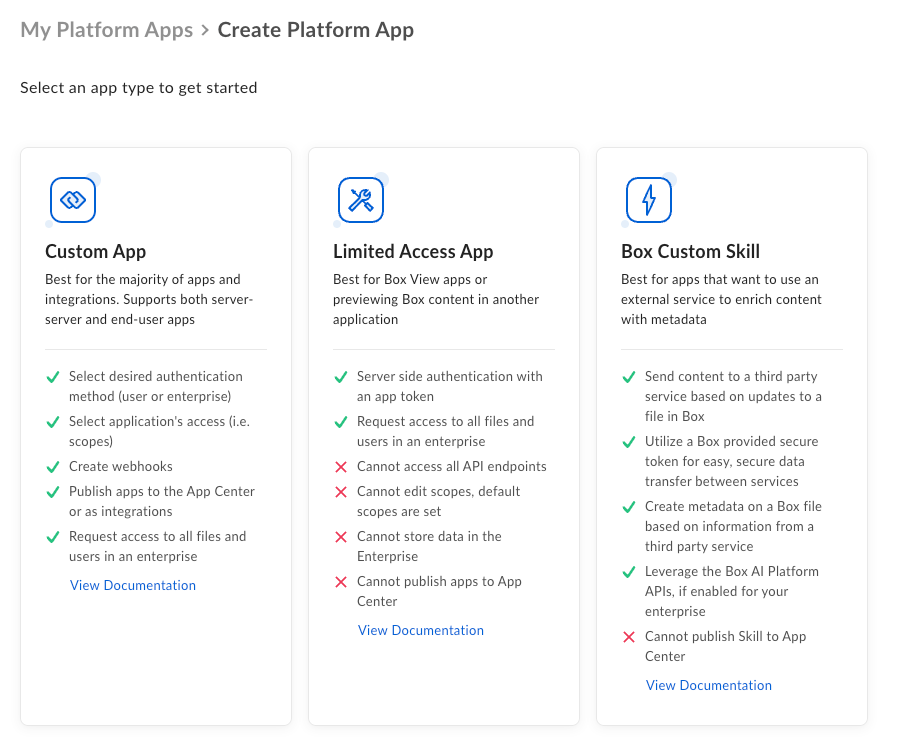
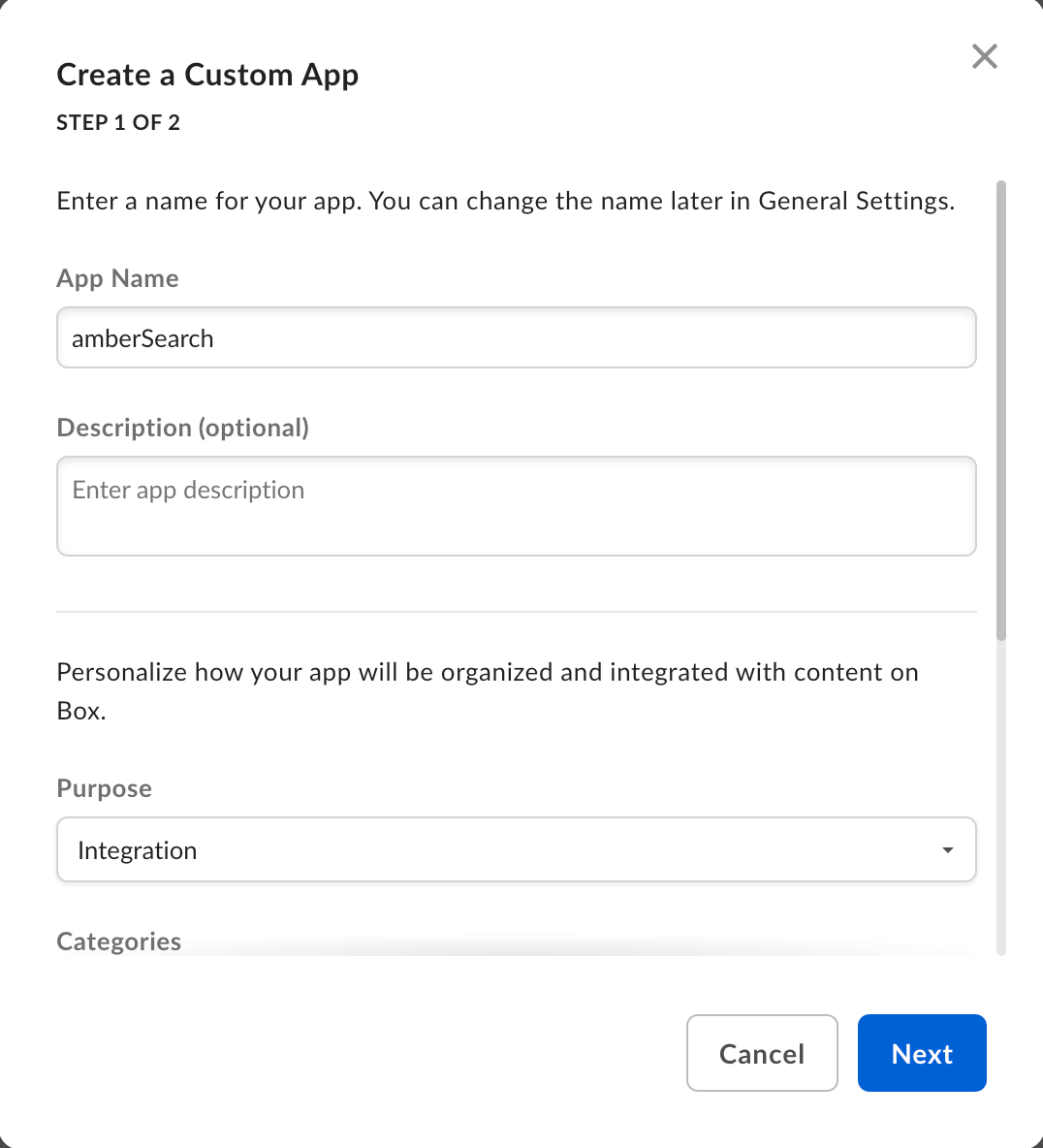
Complete the fields and select Server Authentication (with JWT) as authentication method.
Set App Name to amberSearch
Set Purpose to Integration
Set Categories to AI
Which external system are you integrating with: amber
Who is building this application: Partner
Please specify: amber Tech GmbH
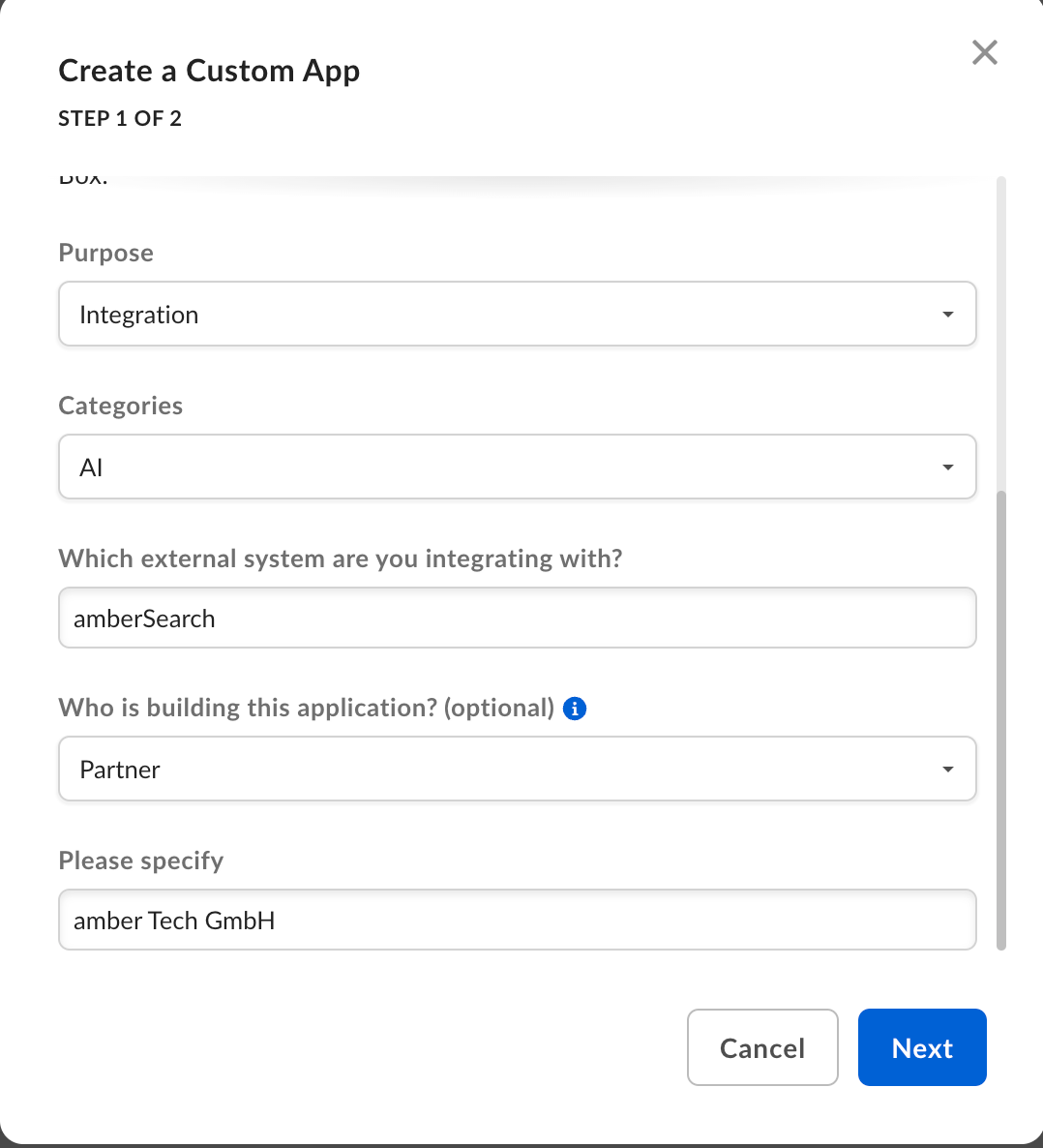
Now your custom app is created. Navigate to "Configuration" tab and set the necessary configurations.
Set App Access level to "App + Enterprise Access"
Set the following Application Scopes
Content Actions
Read all files and folders stored in Box
Write all files and folders stored in Box
Administrative Actions
Manage users
Manage groups
Manage enterprise properties
Set the following Advanced features
Make API Calls using the as-user header
Generate user access tokens
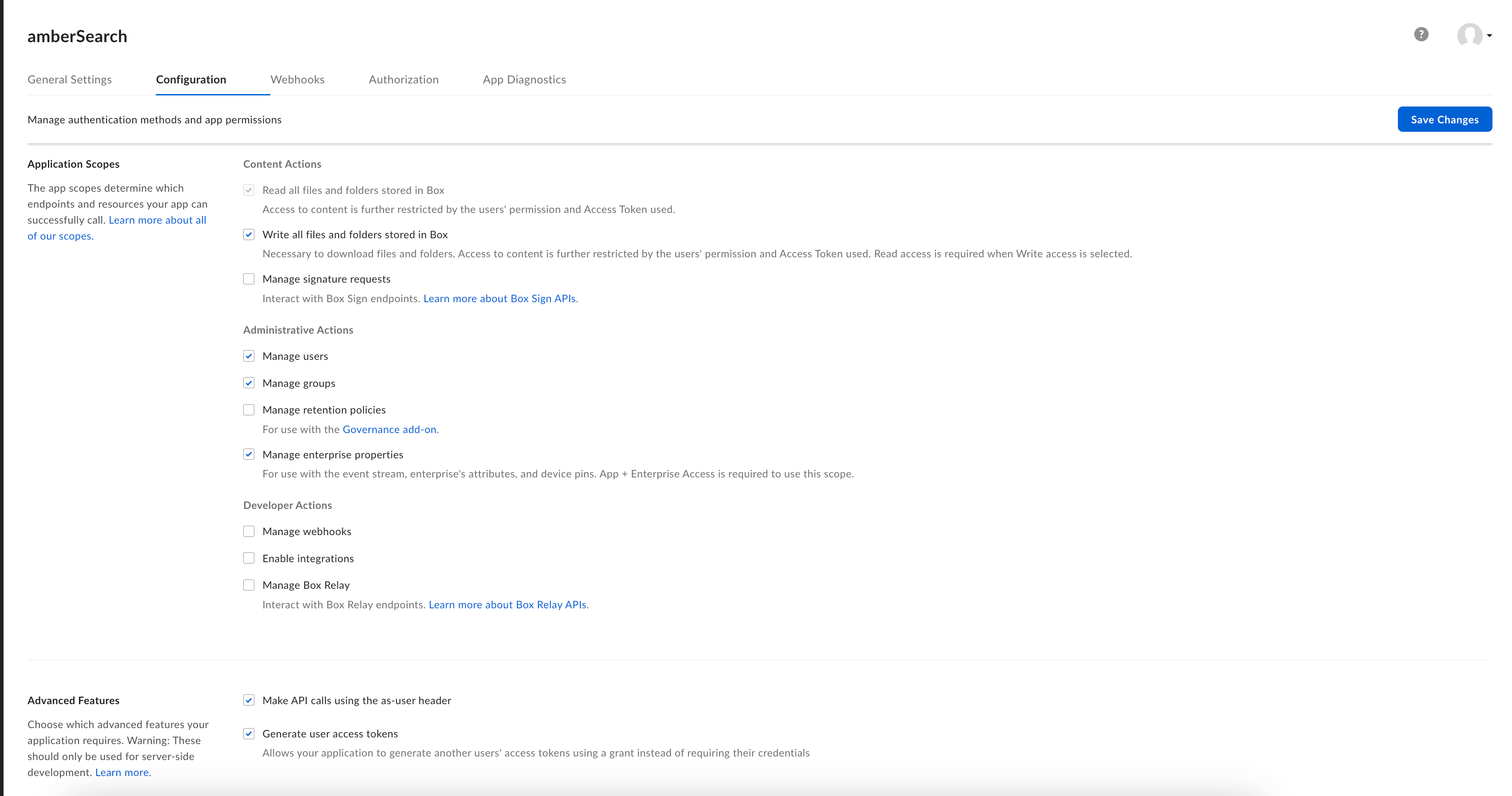
Save Changes
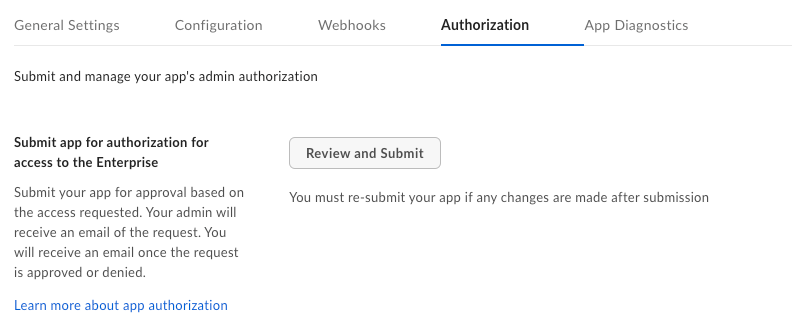
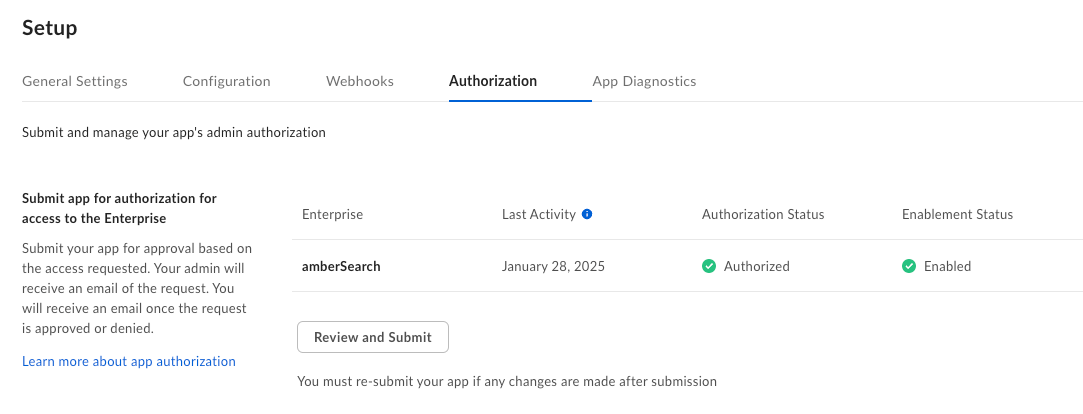
Navigate to "Authorization" tab and click "Review and submit".
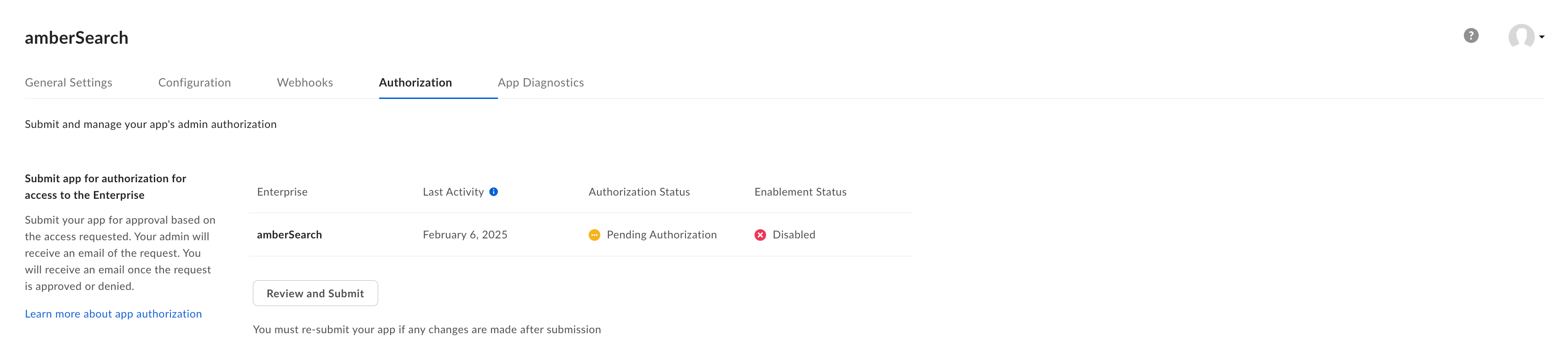
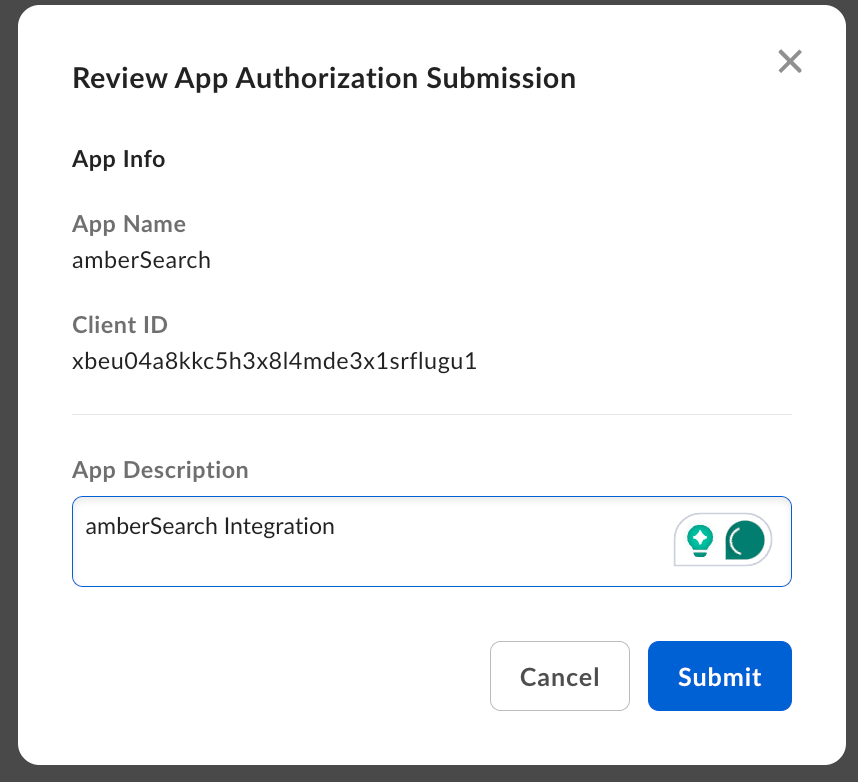
Go to Admin Console > Integrations > Platform Apps Manager and authorize the "Custom App" that was just created in the previous steps
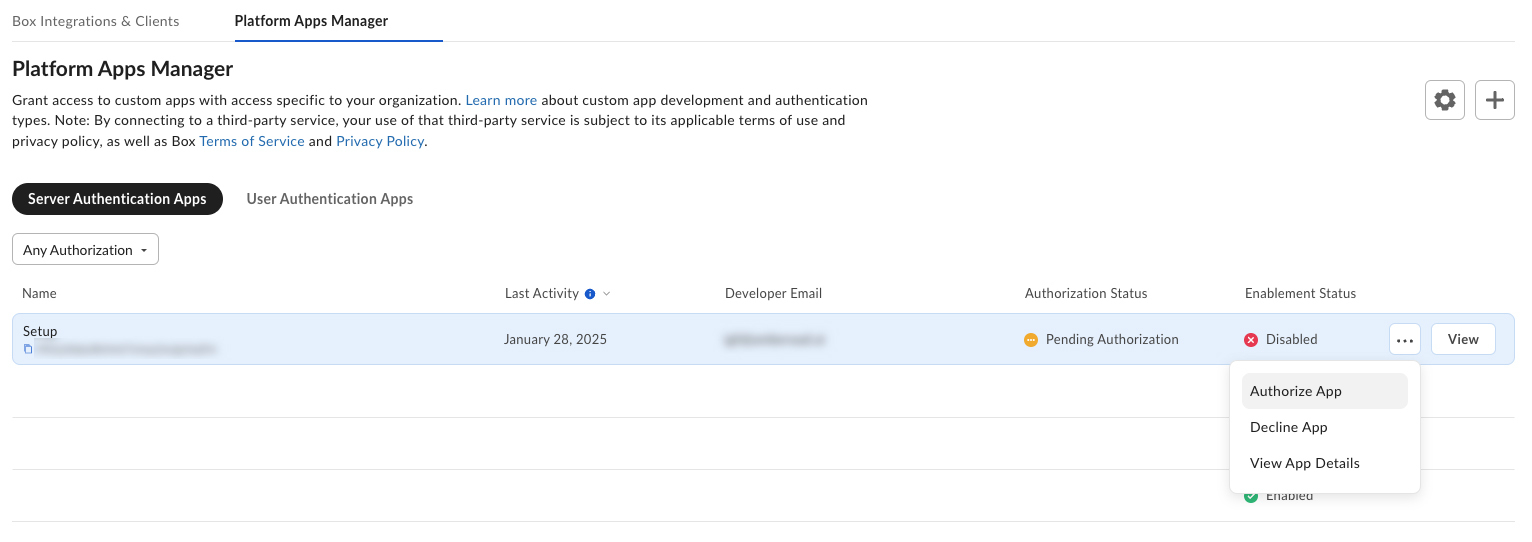
Now your "Custom App" is authorized and you can check it in developer console.
Navigate to "Configuration" tab and "Generate public/private keypair".

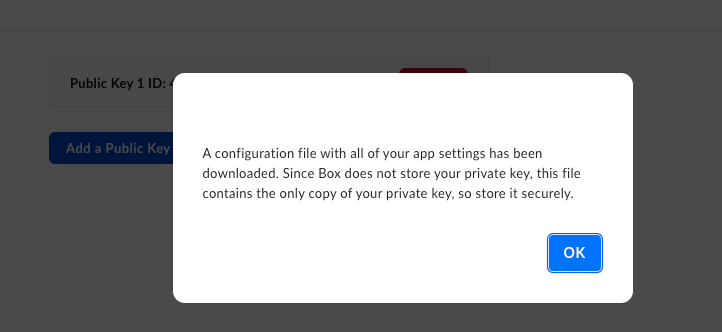
Provide the configuration file to amber.
Navigate to "General Settings" and copy the "Service account" generated.
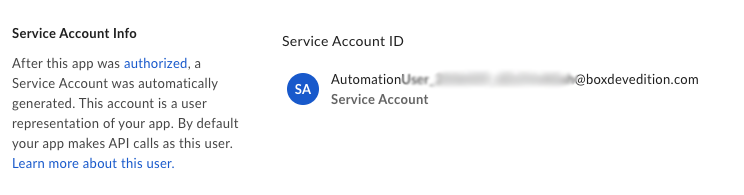
Now that you have your "Custom App" and "Service account", you have to invite this account as Viewer in each folder/file you want to integrate in amber.
Was this helpful?