Which data sources are connected?
What amber can answer from your company knowledge comes down to two things: which data sources are connected, and what you personally have access to.
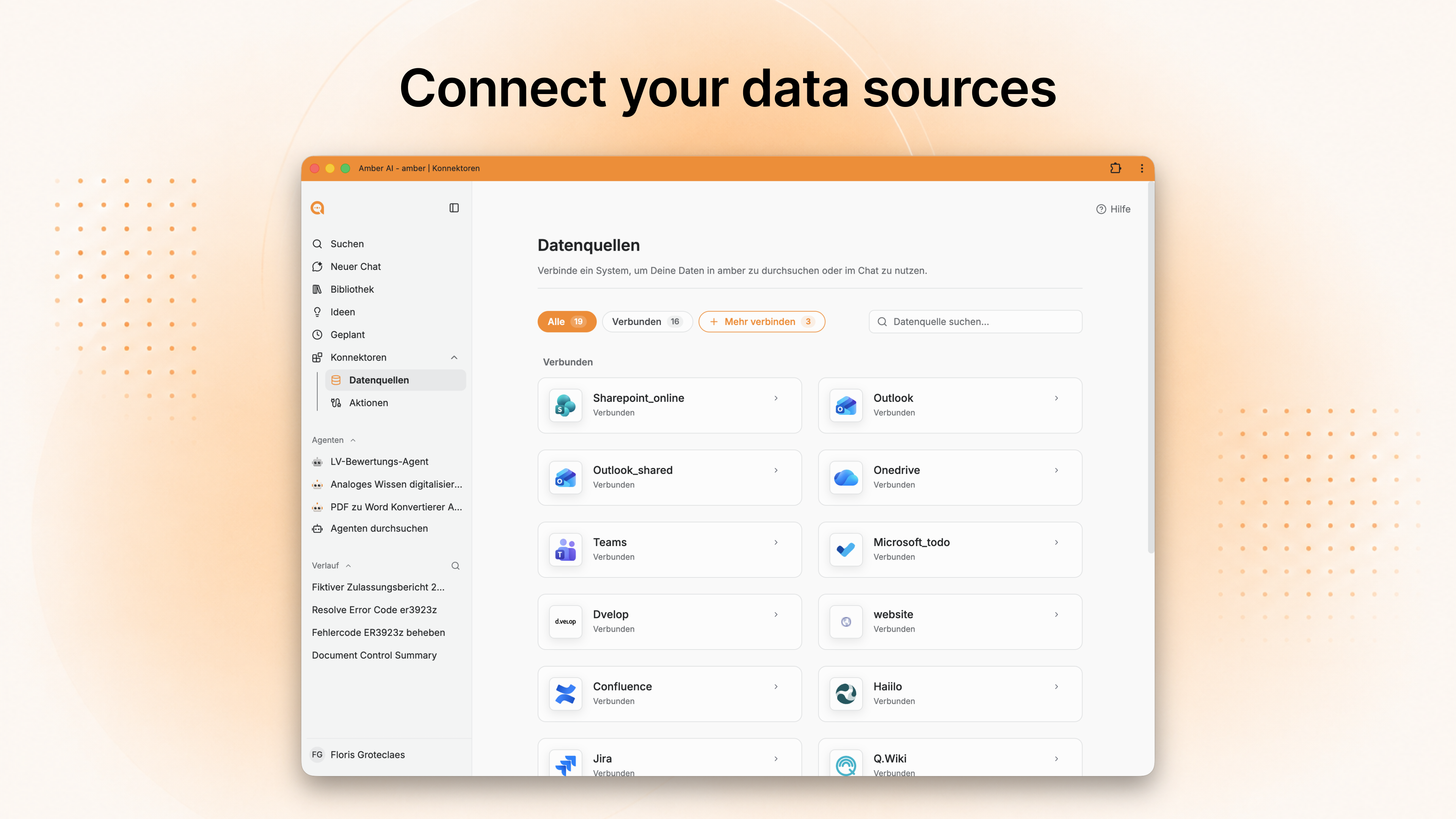
In 3 steps
Open the overview: click Data sources in the left sidebar. You'll see everything available to you – SharePoint, Outlook, OneDrive, Teams, Confluence, Jira and whatever else is connected at your company.
Connect a source: click "Connect" on the source you want and follow the instructions – always with your personal credentials.
Switch it on in the chat: enable "Company knowledge". amber then draws on your sources for its answer.
The three knowledge modes – and why the distinction matters
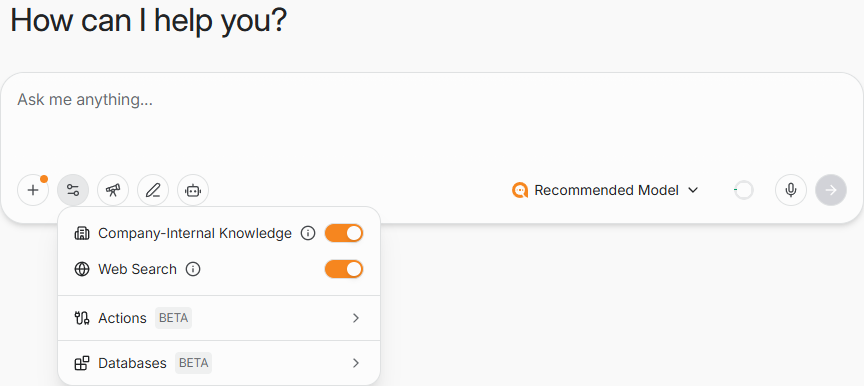
You switch between modes at the bottom of the chat. If you're unsure where an answer came from, the source reference next to the answer tells you.
Data source or action?
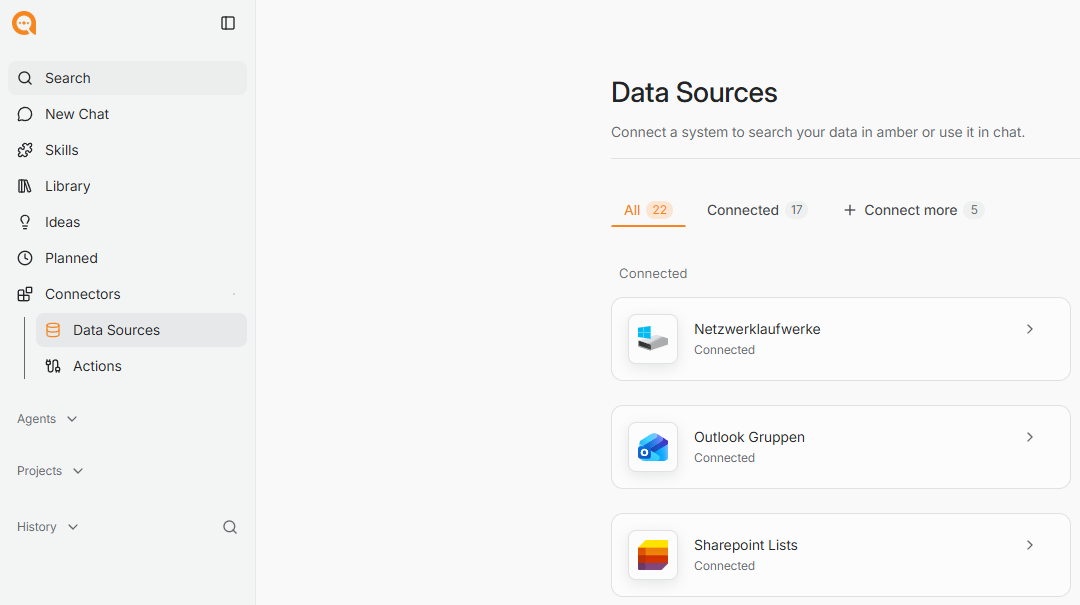
Two things that are easy to mix up:
→ What can amber do in other systems?
Good to know
Your access rights still apply, unchanged. What you can't open in SharePoint won't show up in amber either – and a colleague may get a different answer to the same question.
Every answer names its source. For important questions it's worth checking which document the information came from and how current it is.
Missing a data source you'd like connected? Get in touch at support@amber.de
Go deeper
For administrators
Up next: Which files can amber read?
Was this helpful?