Actions: Connect your systems and decide what amber may do
Connect amber to your systems and decide what amber may do without asking.
What are actions?
Actions connect amber to your systems, for example Outlook, Teams, SharePoint or Asana. amber then doesn't just answer questions, it also completes tasks directly in the chat or in agents. You decide what amber may do without asking.
Great for:
working on emails, appointments and files straight from the chat
handling routine tasks across several systems without switching tools
editing diagrams in draw.io or Excalidraw and tasks in Asana in the chat
Permissions at a glance
Each system's actions are split into two groups:
Retrieve data: amber reads but doesn't change anything, for example when searching messages.
Modify data: amber writes, sends or creates something, for example an email.
Each action has one of three settings:
For administrators: Set up actions for your company
As an admin, you decide which settings your colleagues start with and what they may allow without confirmation. You'll find everything under Company settings › Connectors › Actions.
Step 1: Set the default for "Retrieve data"
Open Company settings › Connectors › Actions and select a system, for example Outlook.
Under Retrieve data, set what everyone starts with for each action: Always ask or Always allow.
Use the toggle to turn off actions nobody should use. Use the quick selection to set all actions in a group at once.
Every user can change this default for themselves.
Step 2: Unlock "Modify data"
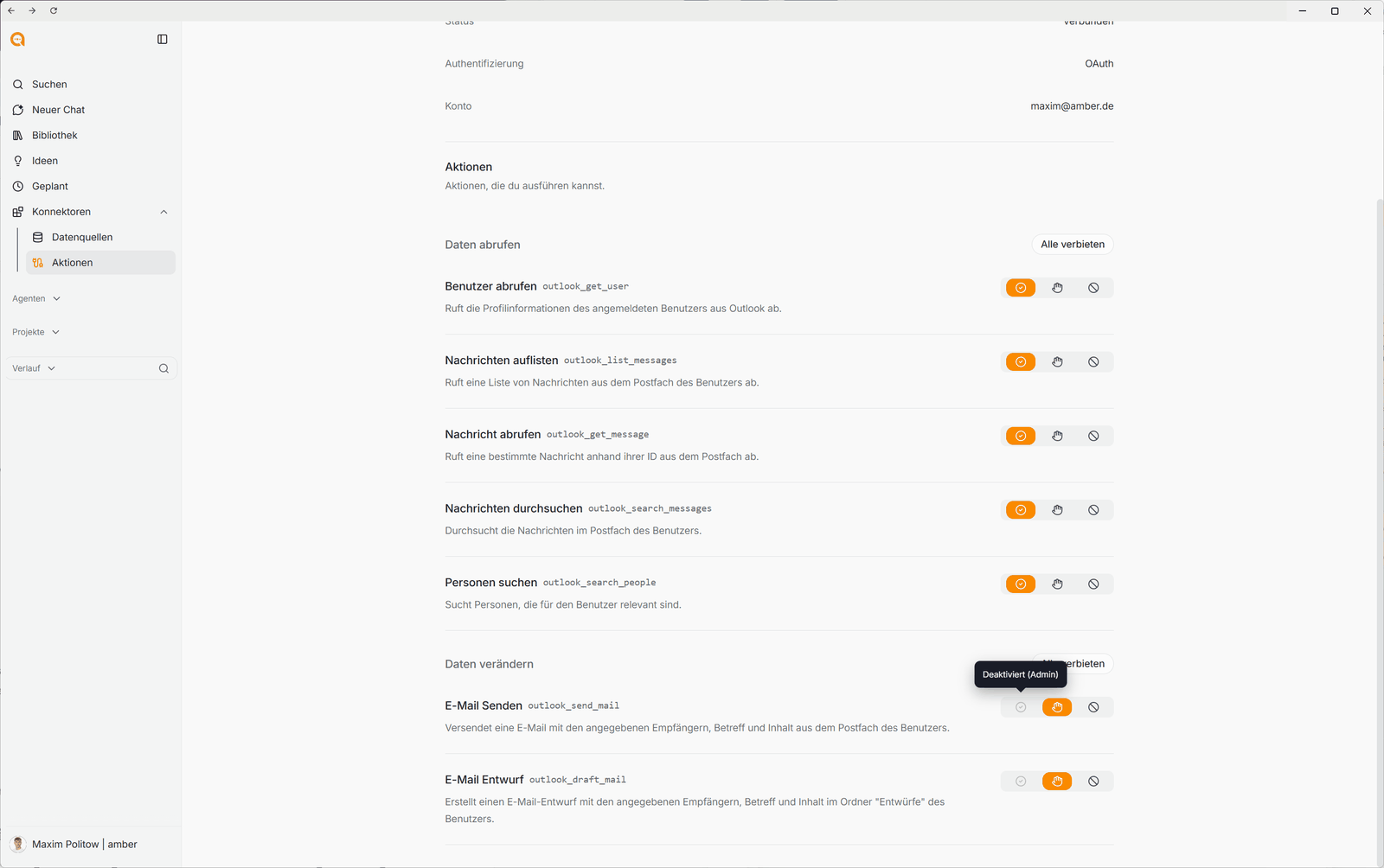
Under Modify data, you decide for each action whether users may set it to Always allow. If you don't allow this, every run must be confirmed, and your colleagues see the note Disabled (Admin).
For example: amber may create email drafts automatically, but someone still has to confirm sending them.
Important: If a user has changed a setting themselves, for example to Always deny, their choice applies. A company default doesn't overwrite it.
Step 3: Add a custom action for everyone
If a system you use has its own MCP server, you can connect it for the whole company:
Under Connectors › Actions, click Add action.
Enter a name and the MCP server URL, plus an optional description and icon.
Choose the Authentication type, for example No authentication, OAuth, bearer token or custom headers.
Turn on Available to the entire company. Only admins see this toggle.
Confirm that you understand the risks and that the action is logged for auditing.
Click Add custom MCP.
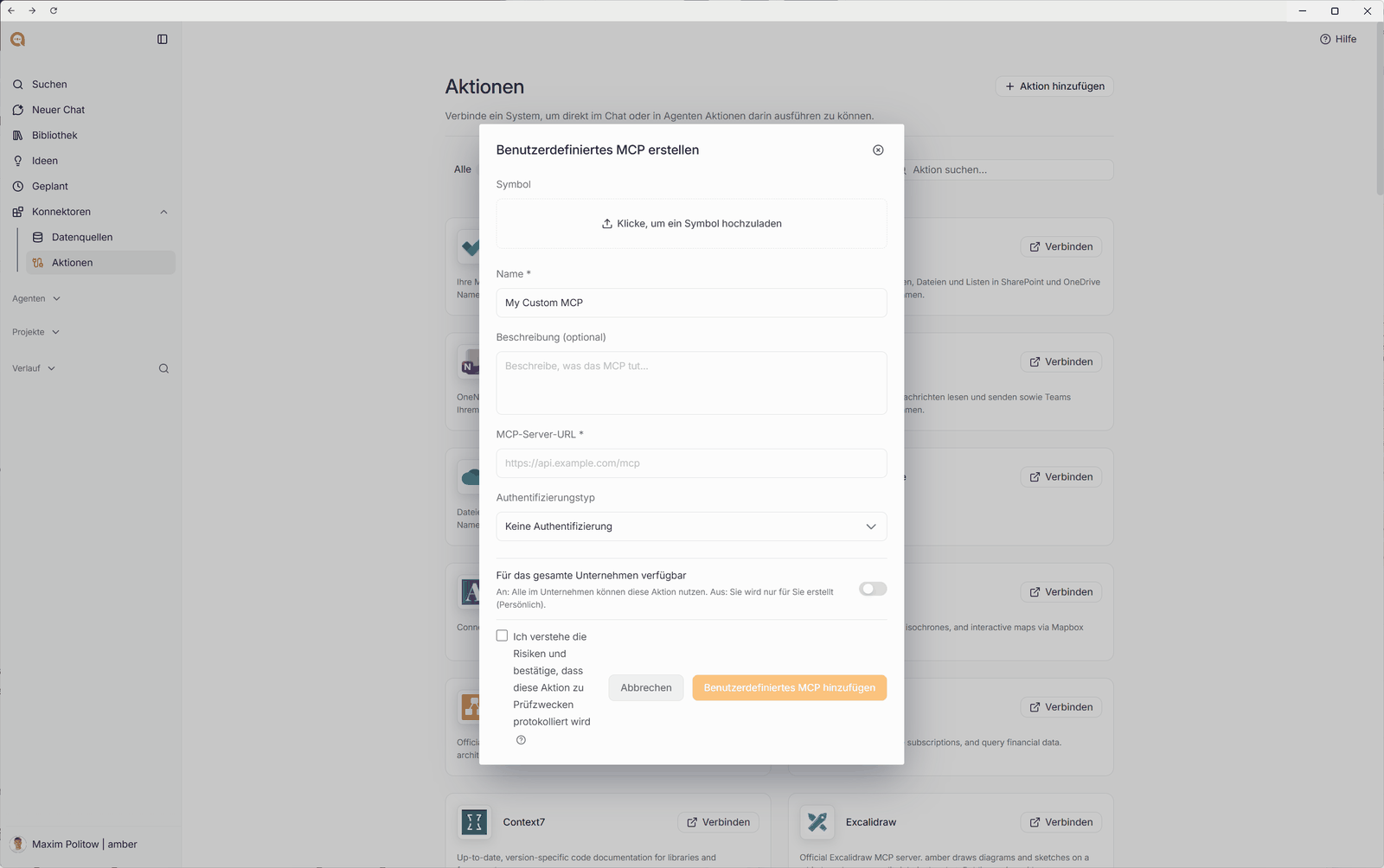
The MCP server must be reachable on a public domain. localhost isn't supported.
For users: Connect and use actions
Step 1: Connect an action
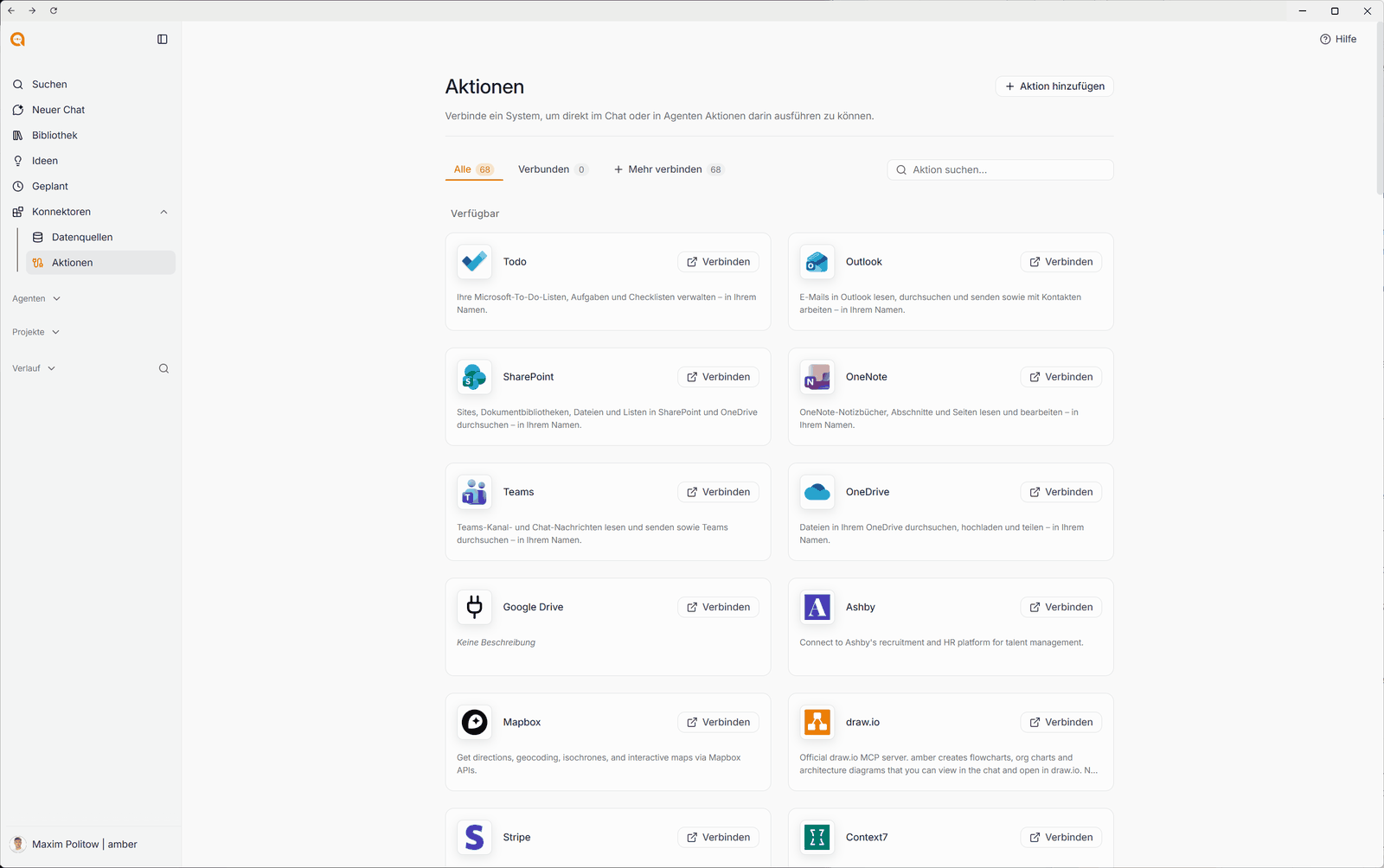
Click Connectors › Actions in the sidebar. All shows every available system, Connected shows the ones you've connected.
Click Connect next to the system you want, for example Outlook, and confirm with Connect in the window.
Sign in with the provider and confirm the requested permissions.
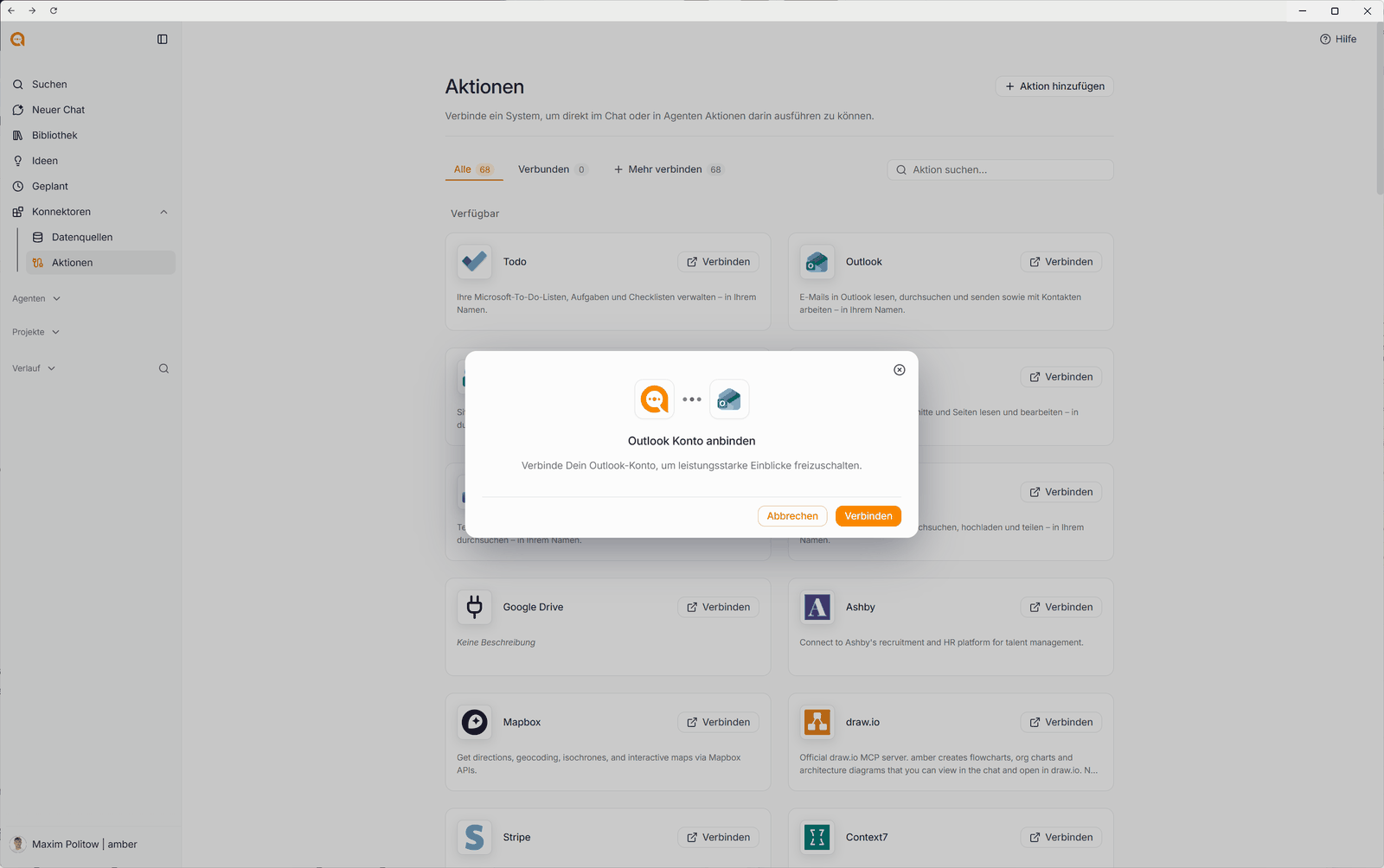
amber always acts on your behalf and only with the permissions you have in that system.
Step 2: Decide what amber may do
Click a connected action and choose Always allow, Always ask or Always deny next to each individual action. Deny all blocks a whole group at once.
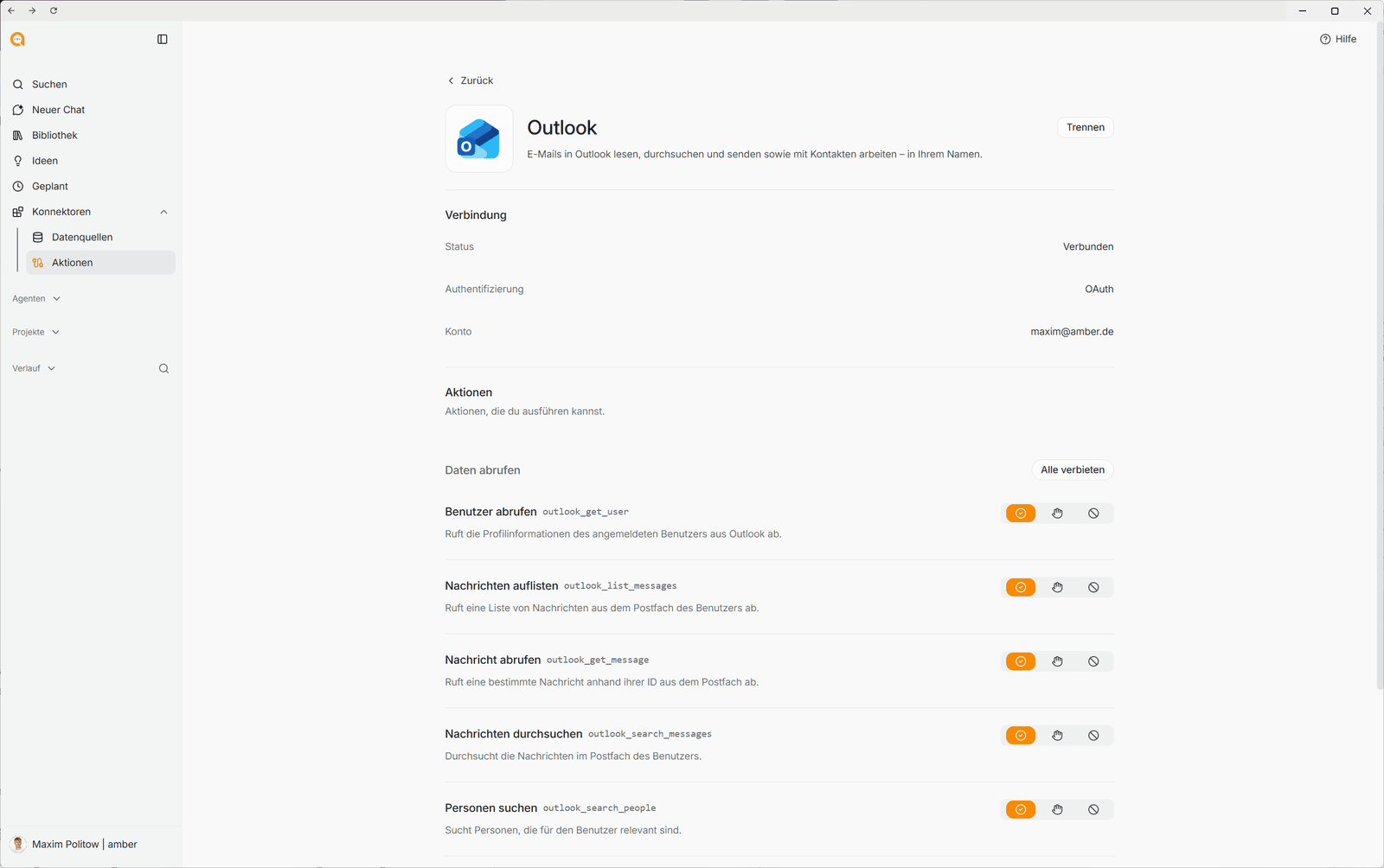
Our recommendation: Set actions that only retrieve data to Always allow. Leave actions that modify data on Always ask. That way, amber never sends an email without your approval.
If the check mark is greyed out and shows Disabled (Admin), your admin has decided that you confirm every run.
Step 3: Use actions in the chat
Simply describe what amber should do, for example: "Find Anna's last email about the proposal and draft a reply."
To choose which actions amber may use in a chat, click the settings icon (sliders) in the input field and open Actions.
If an action is set to Always ask, amber shows a box in the chat before running it. Allow or decline the action there.
If an action is interrupted because you switched to another tab, amber offers to try again.
Actions with their own interface
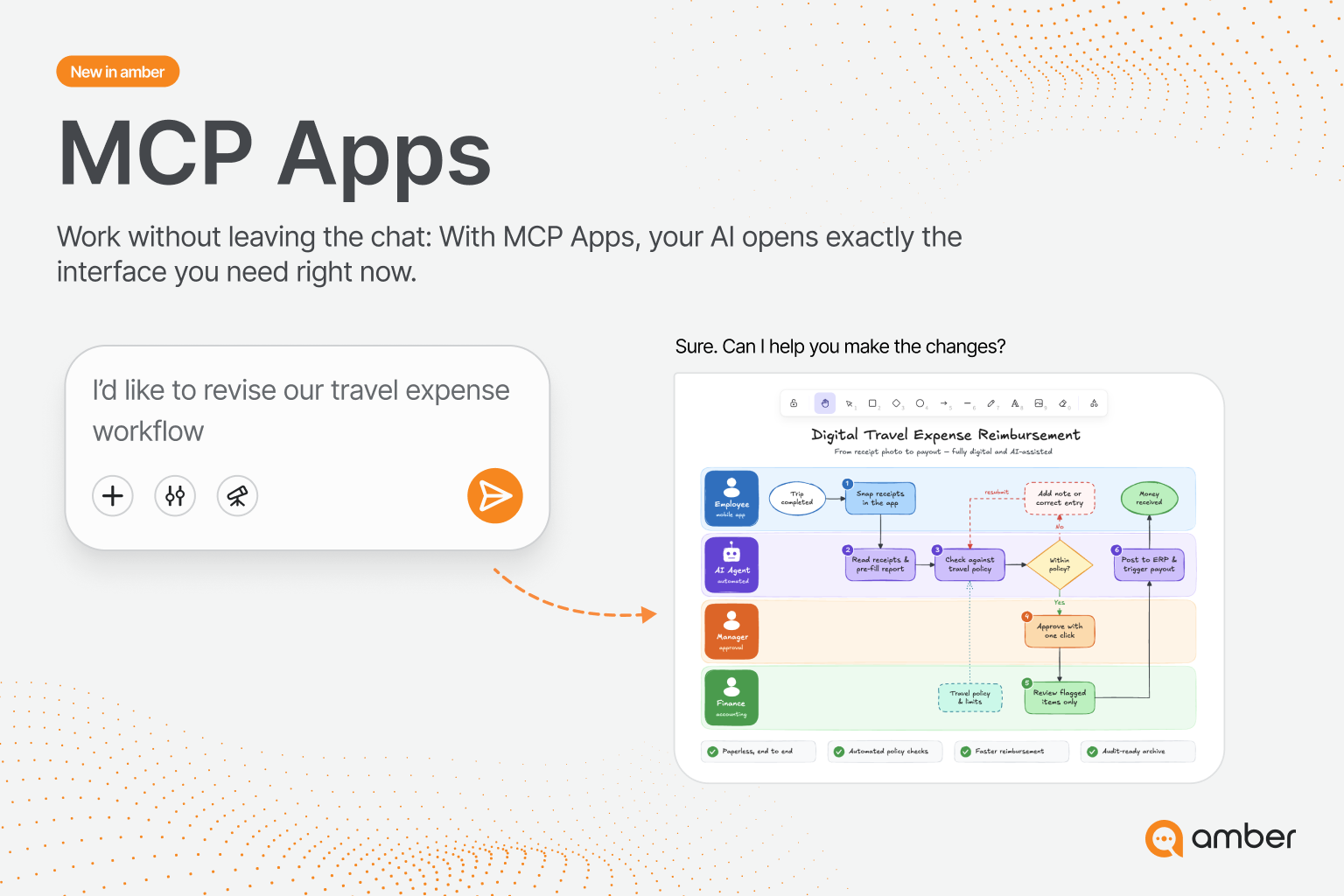
Some actions show their interface right in the chat. These are called MCP Apps. With draw.io and Excalidraw you create diagrams, with Asana you manage projects and tasks without leaving amber. You connect them like any other action.
Disconnect
Open the action and click Disconnect in the top right. amber then no longer has access to that system.
System missing?
Request the integration directly in amber: in the Request action from amber window, enter the name of the integration, optionally the MCP server URL, and describe what you need it for. Click Send and we'll get back to you.
FAQ
Why doesn't amber ask anymore? The action is set to Always allow for you. Change it to Always ask under Connectors › Actions.
Why can't I select "Always allow"? Your admin has decided that every run of this action must be confirmed.
Can my admin change my setting? No. Once you've changed a setting yourself, your choice applies.
Was this helpful?