Skills: Teach amber new abilities
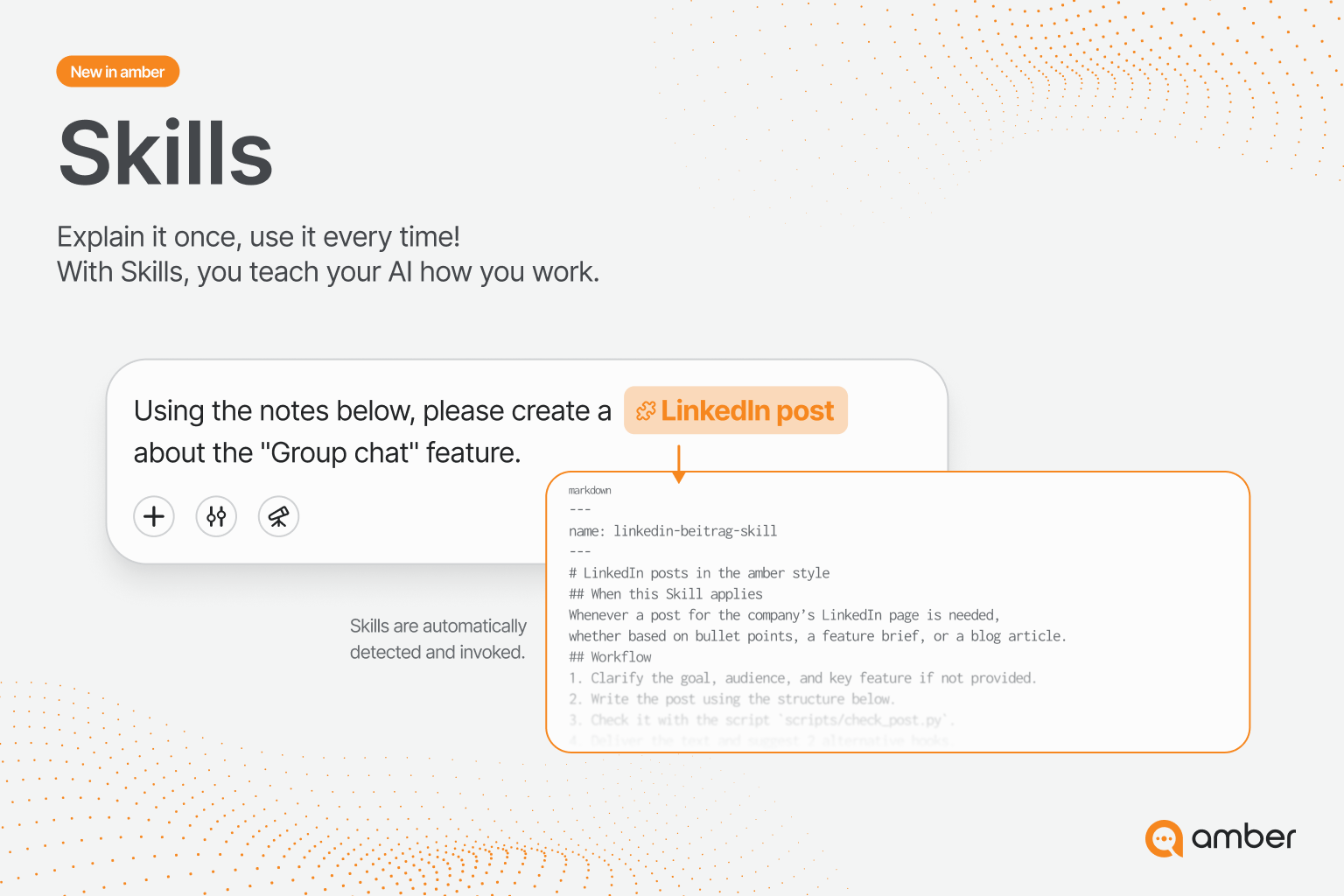
Teach amber fixed workflows that it completes the same way every time.
What are skills?
A skill is a fixed set of instructions for a specific task. Instead of explaining in every chat how something should be done, you define it once as a skill. amber then always completes the task the same way and in the format you want.
Great for:
standardizing recurring tasks, for example proposals from customer requests or presentations in your corporate template
sharing proven ways of working with your team
reusing skills from Claude or the internet in amber
How skills work
A skill consists of a name, a description (what it does and when amber should use it), instructions (how amber completes the task step by step) and optional files such as Word templates, Python scripts or images.
Based on the description, amber recognizes whether an enabled skill fits your request. It then loads the instructions and uses the files. For example, the Create QR codes skill comes with a Python script that turns links or text into a QR code.
Good to know:
Install, then enable: amber only uses installed skills once you enable them in the chat (see step 5).
Private until you share: Only you can see your skills until you share them.
Enable sparingly: Every skill in use takes up space in the context window and uses additional tokens.
Skill or agent? A skill is a set of instructions for a specific task, and amber uses it whenever it fits. An agent is a separate assistant with fixed instructions and knowledge sources that you select on purpose. You can combine both by attaching skills to agents.
For administrators
Skills are available to all users, and there's nothing to install. You'll find company-wide settings under Company settings › Skills.
Our recommendations for getting started:
Share proven skills centrally: One well-maintained skill for proposals or presentations is worth more than many similar one-off solutions.
Check imports: Skills contain instructions and sometimes scripts that amber runs. Only share skills from trusted sources.
Few, well-described skills: Every skill costs context and tokens.
For users: Set up and use skills
Step 1: Open skills
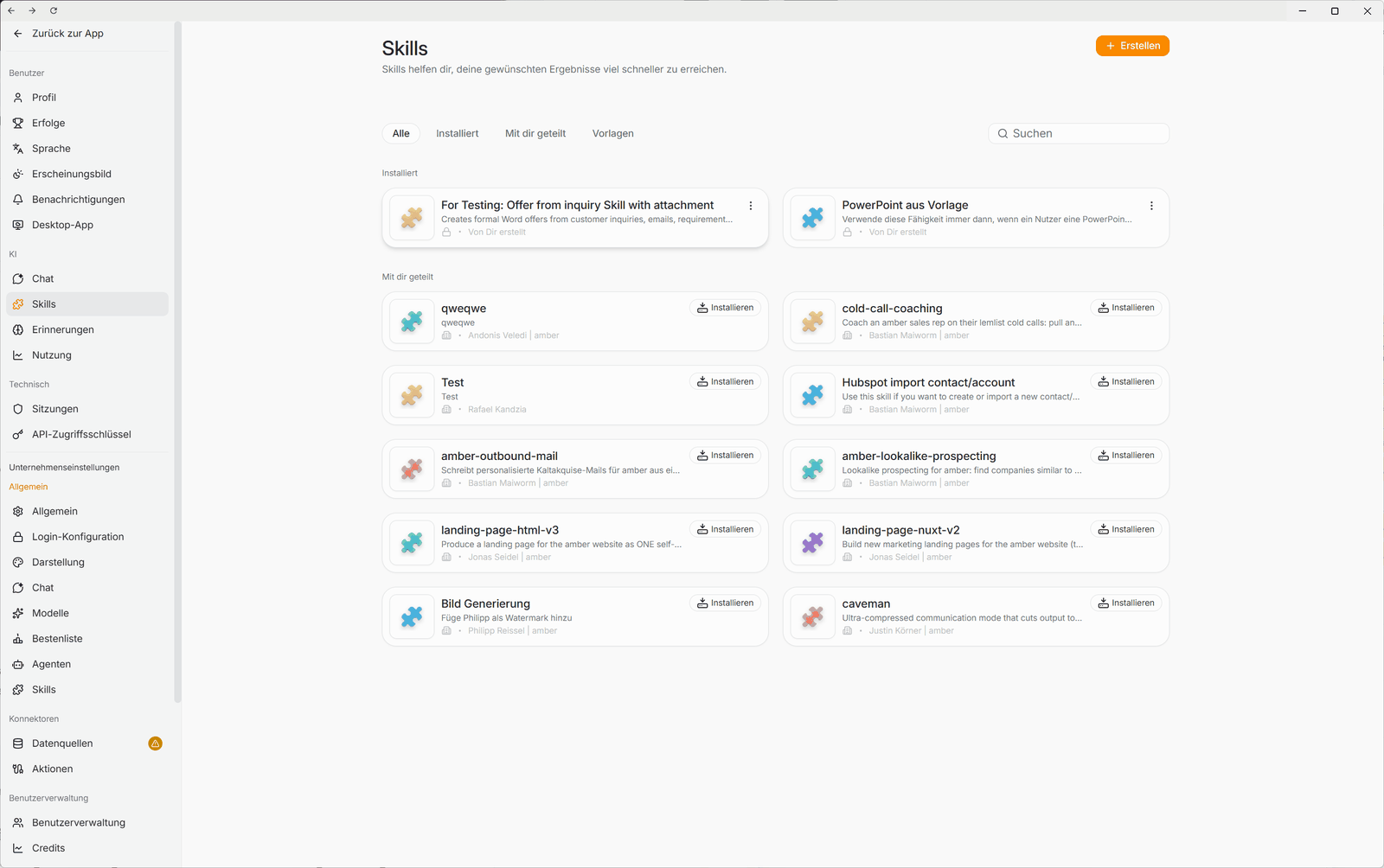
Click the settings icon (sliders) in the input field, then Skills › Manage skills. You'll also find skills in the settings under AI › Skills. There are four tabs:
All: all skills at a glance
Installed: skills you've installed or created yourself
Shared with you: skills your colleagues have shared with you
Templates: ready-made skills from amber
Step 2: Install a ready-made skill
Open Shared with you (from colleagues) or Templates (from amber) and click Install on the skill you want.
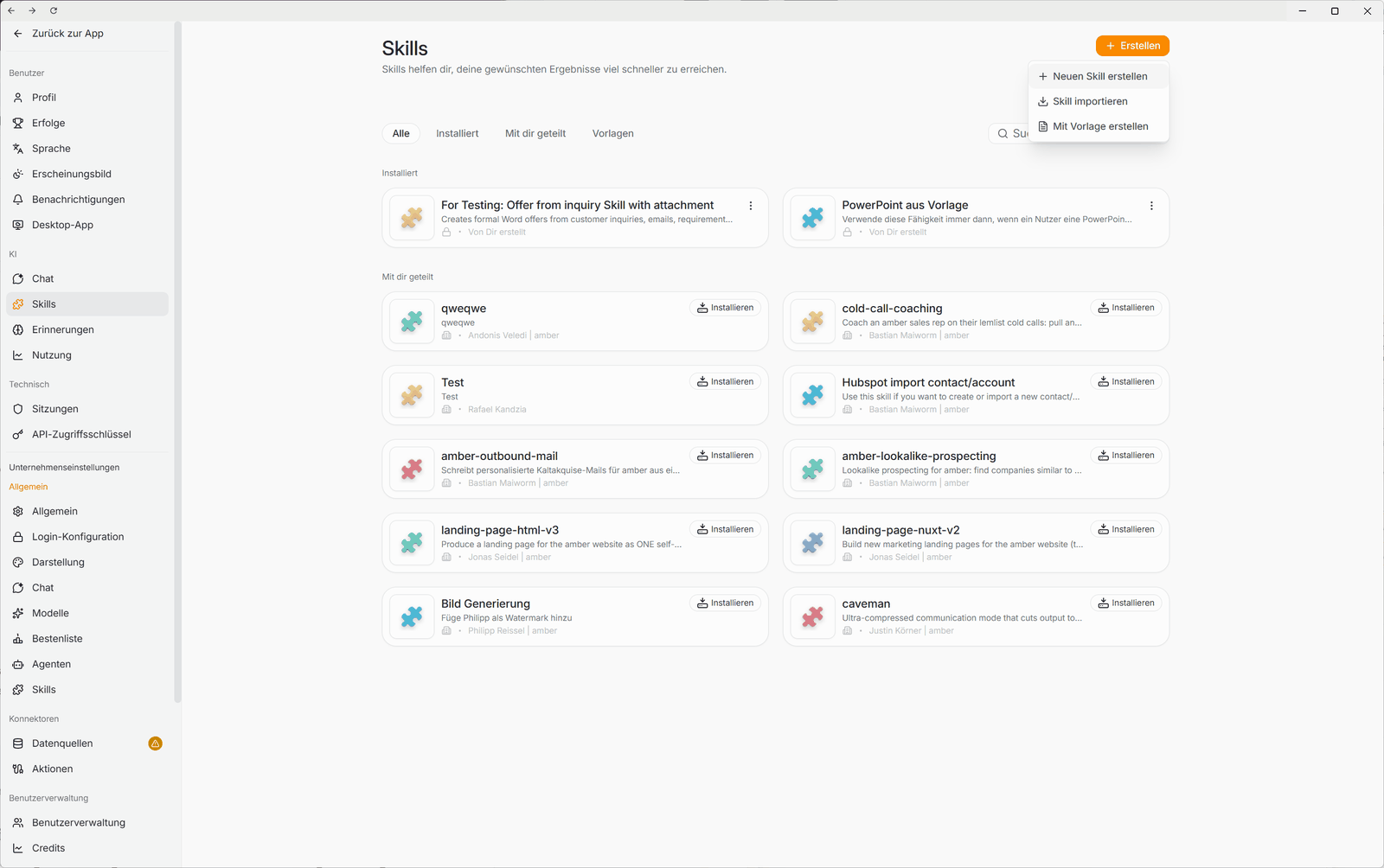
Some templates work right away, for example Create QR codes. Others you adapt: for PowerPoint from template, add your slide template and ideally the fonts you use. Other templates include "Proposal from customer request", "Meeting summary" and "Report generator".
Step 3: Create your own skill
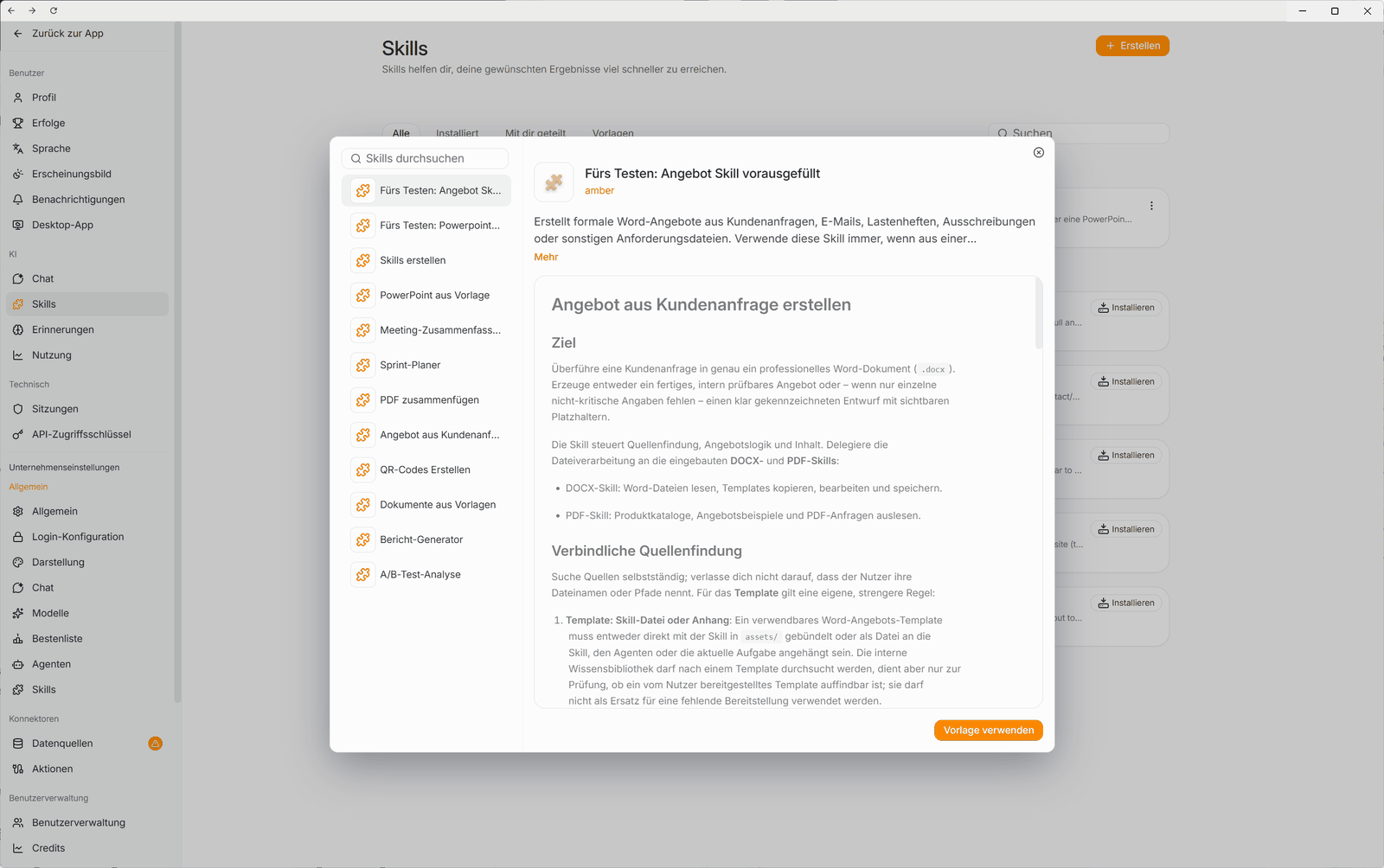
Click Create in the top right. You have three options:
Create new skill: You write the instructions yourself.
Import skill: You already have a skill file, for example from Claude (see step 4).
Create from template: You start from an amber skill and adapt it.
Write it yourself
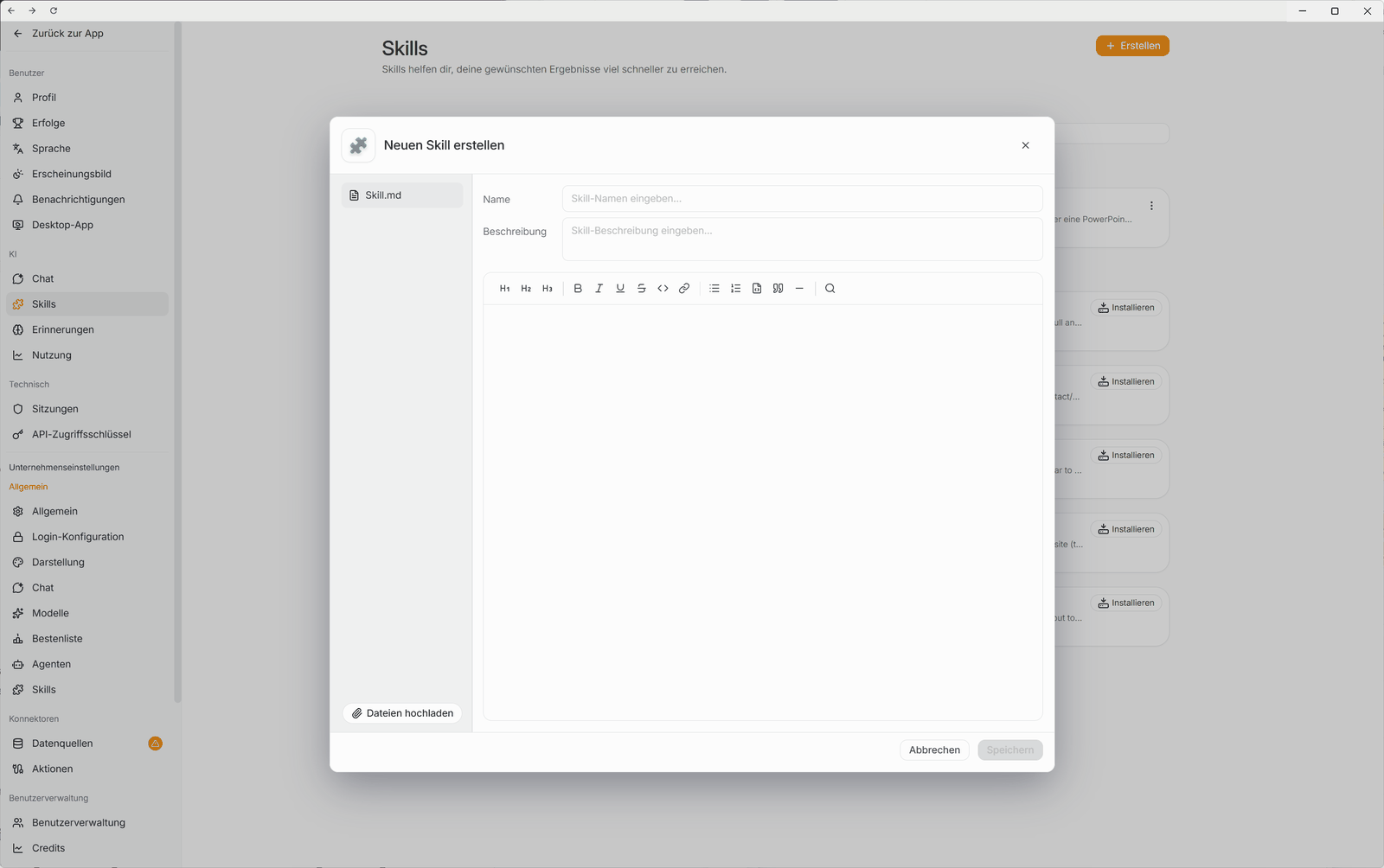
Click Create › Create new skill.
Enter a name and a description. The description says what the skill does and when amber should use it. The more specific it is, the more reliably amber uses it.
Write the instructions in the editor: steps, rules and an example of a good result.
If needed, upload templates, scripts or examples via Upload files.
Click Save.
Tip: Let amber build the skill for you. Install the Create skills skill under Templates and enable it in the chat. Then describe what your skill should do, for example: "Create a skill that turns meeting notes into our minutes format: participants, decisions, tasks with owners." amber asks follow-up questions and gives you the finished skill as a .zip file, which you upload via Create › Import skill.
Step 4: Import a skill
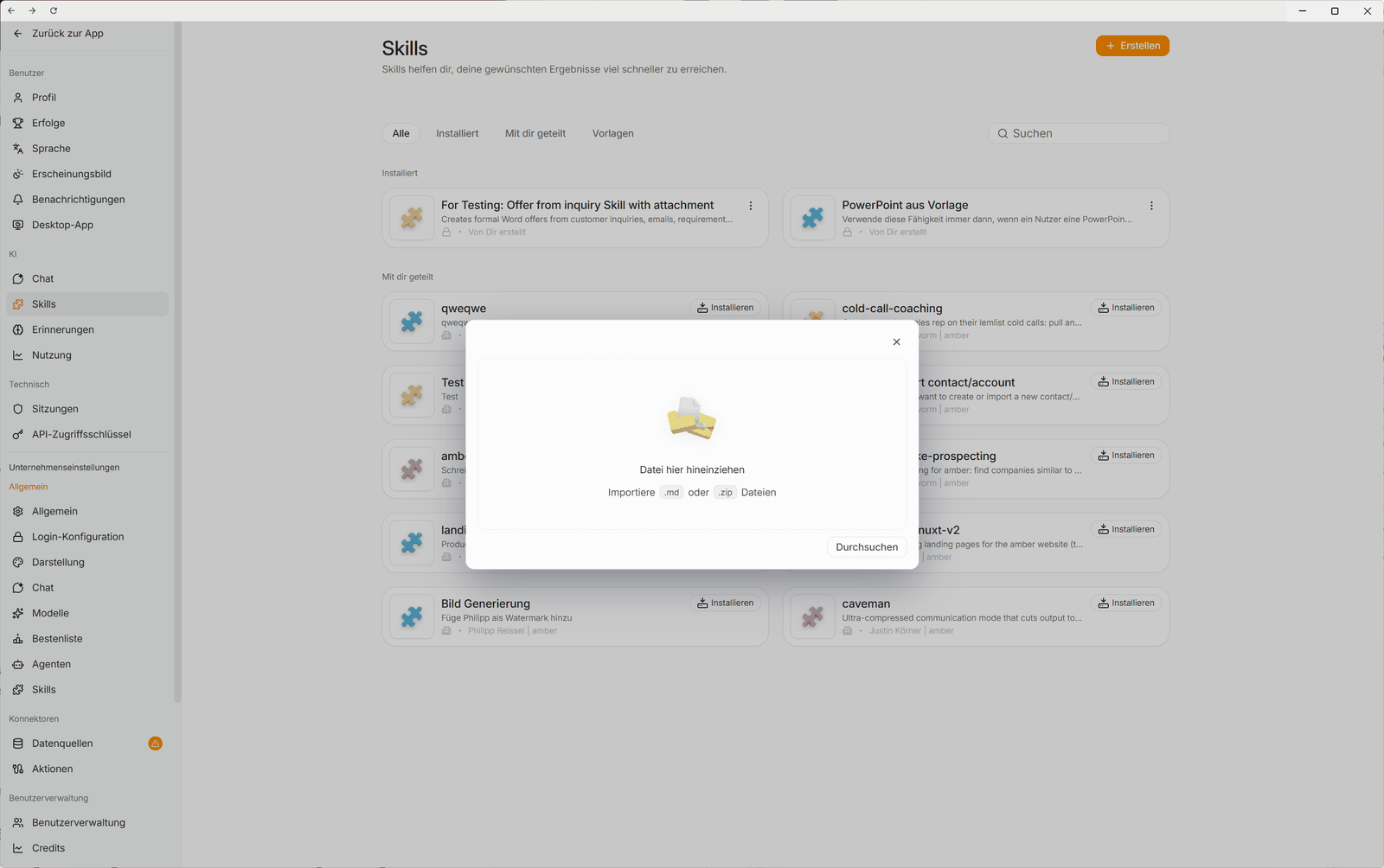
Click Create › Import skill.
Drag the file into the window or click Browse. amber imports a Skill.md file or a .zip file containing the complete skill.
Caution: Only import skills from trusted sources and read them first.
Step 5: Enable a skill in the chat
amber only uses installed skills once you enable them in the chat:
Click the settings icon (sliders) in the input field, then Skills.
Turn on the skills you want or click Select all.
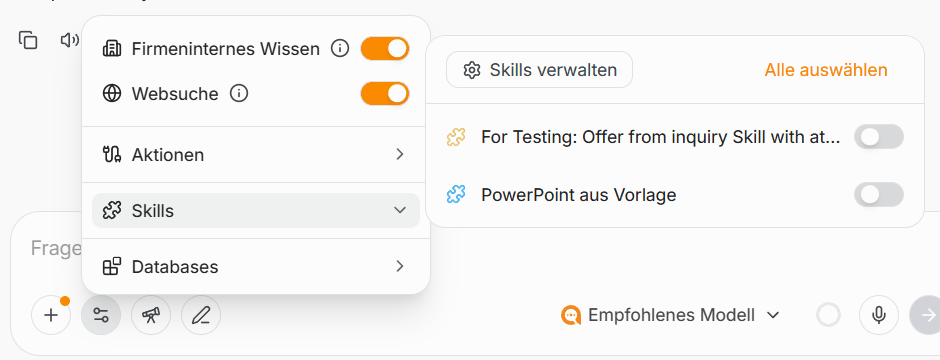
amber uses enabled skills as soon as they fit your request. To test a skill on purpose, open it in the overview and click Try in chat.
Step 6: Manage skills
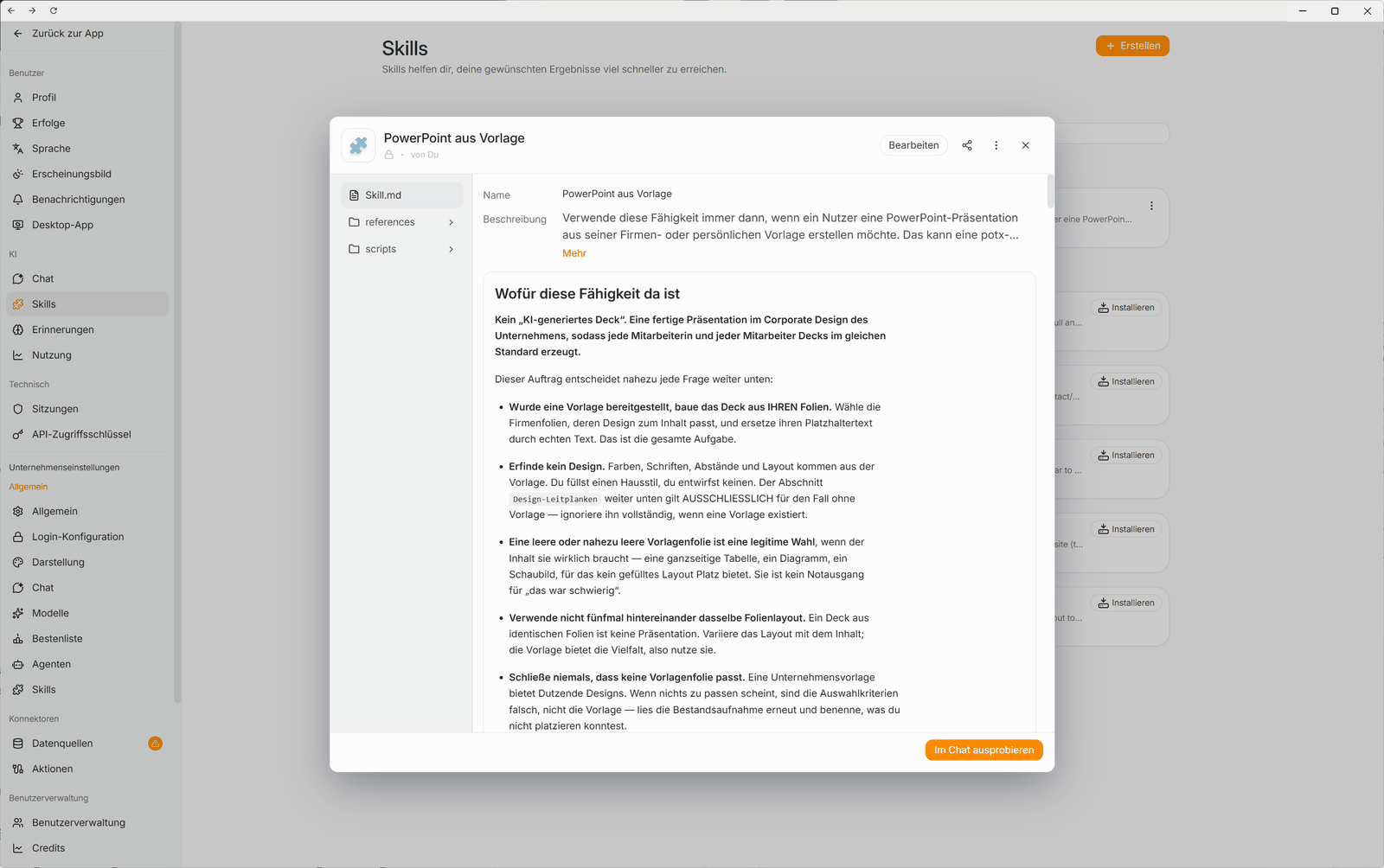
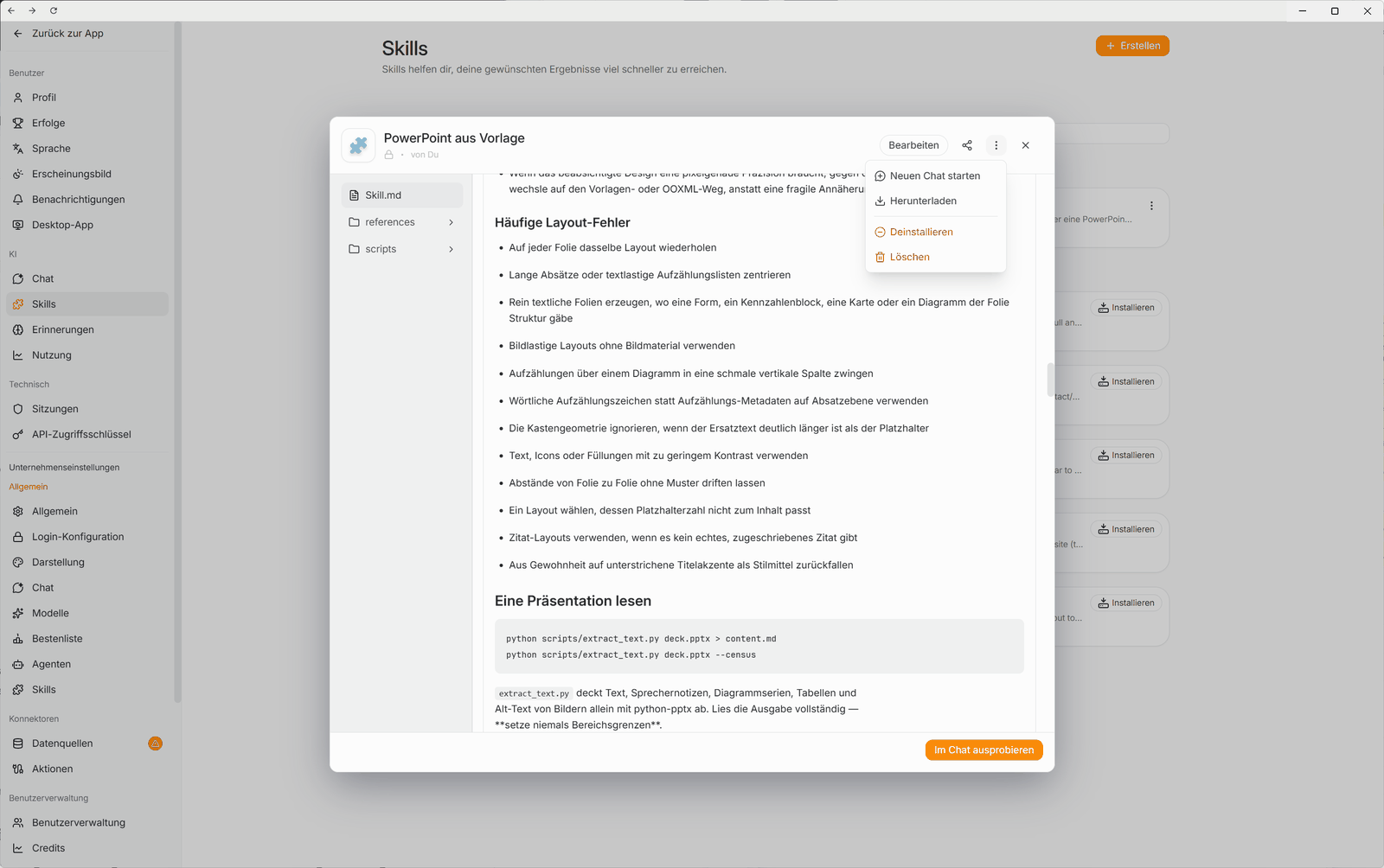
In an open skill, you'll find:
Edit: change the instructions, description or files
Share (share icon): make the skill available to colleagues. It then appears for them under Shared with you.
Three-dot menu: Start new chat, Download (as .zip), Uninstall (you can reinstall it anytime) and Delete (permanently removes a skill you created)
FAQ
Can my colleagues see my skills? No. Only once you share a skill does it appear for them under Shared with you.
amber doesn't use my skill. What can I do? Check that the skill is installed and enabled in the chat, and make the description more specific. To test it, use Try in chat.
Can I use skills from Claude? Yes. Download the skill as a Skill.md or .zip file and import it via Create › Import skill.
Was this helpful?