Group chats: Work together with colleagues and amber
Work with your colleagues and amber in one shared chat.
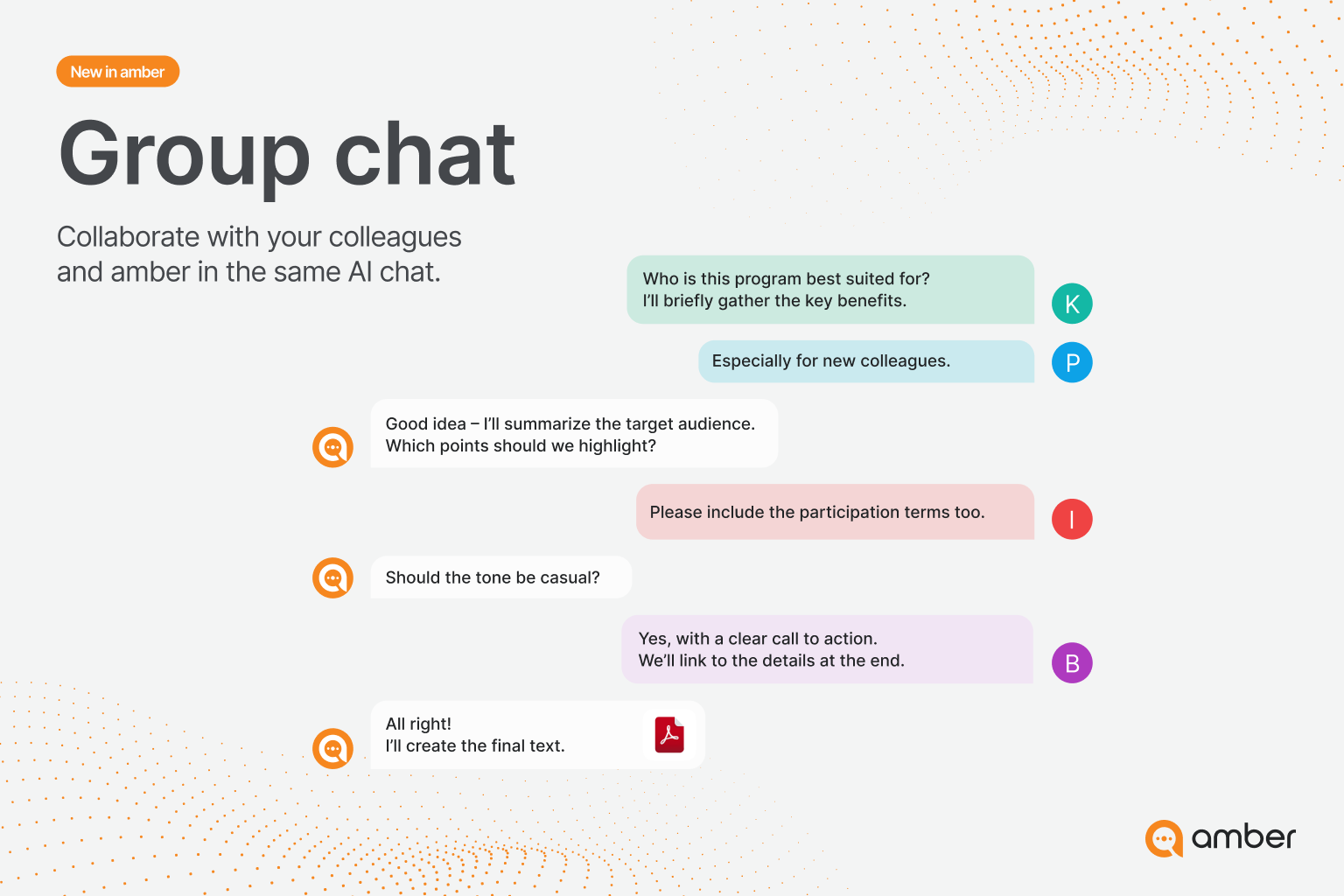
What are group chats?
In a group chat, you and your colleagues work together in one conversation with amber. Everyone sees the same history, asks amber questions and leaves notes for each other. amber can do everything you're used to: search your company knowledge and the web, and process and create files.
Great for:
working together on a customer project, proposal or plan
using knowledge from your documents directly as a team
recording results and decisions so everyone can see them
For administrators
Group chats are available to all users, and there's nothing to set up. Good to know:
Access rights stay intact: In your data sources, amber only searches what all members are allowed to see. Nobody sees documents through a group chat that they couldn't otherwise access.
Actions and databases: The settings of the person who calls amber apply. All members see the answer.
Agents and projects can't be used in group chats yet. They will follow in a later update.
For users: Start and use a group chat
Step 1: Create a group chat
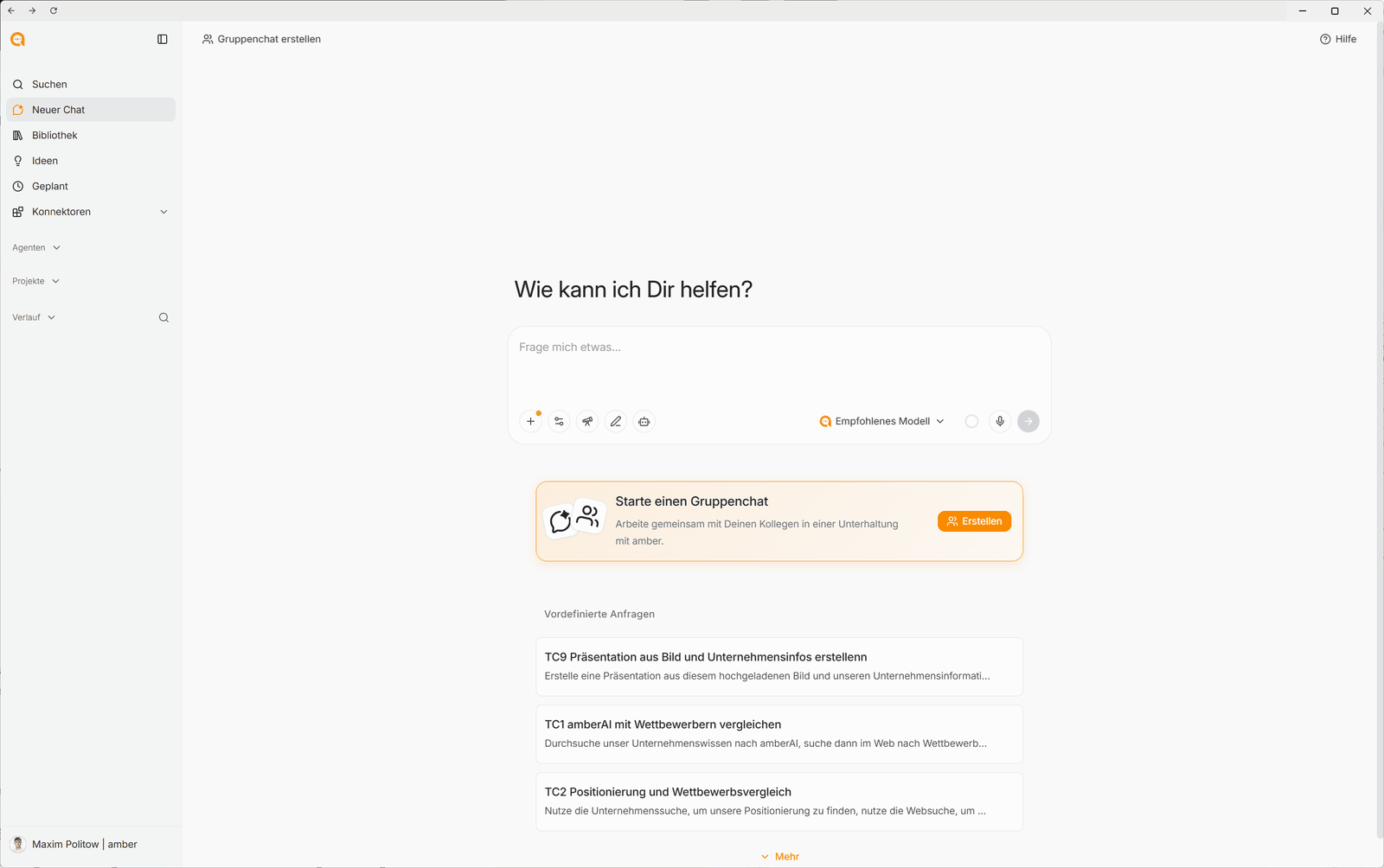
Click New chat in the sidebar.
Below the input field, click Create next to Start a group chat. You'll also find Create group chat in the top left.
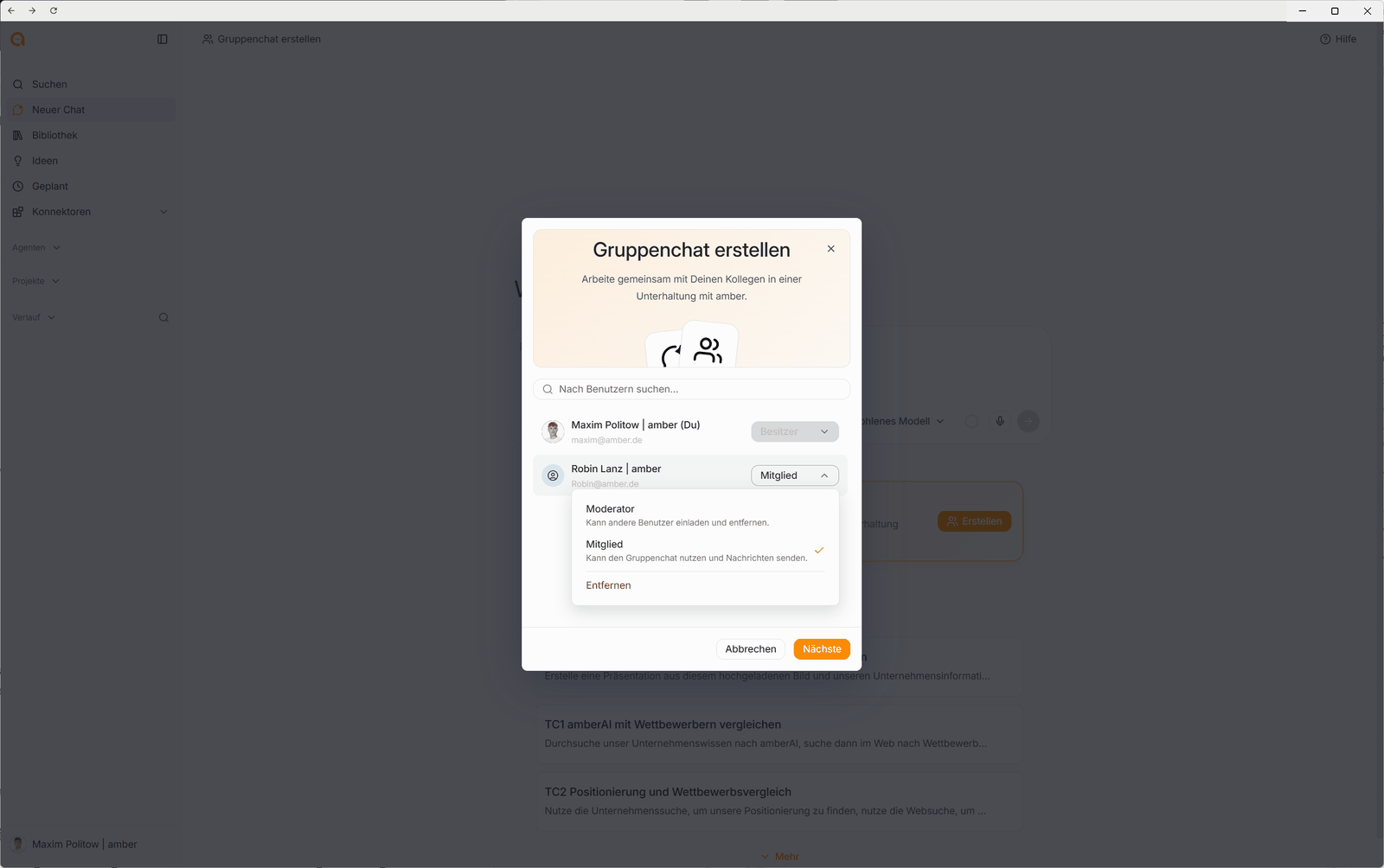
Use Search for users… to find colleagues and add them.
Choose a role for each person (see below) and click Next.
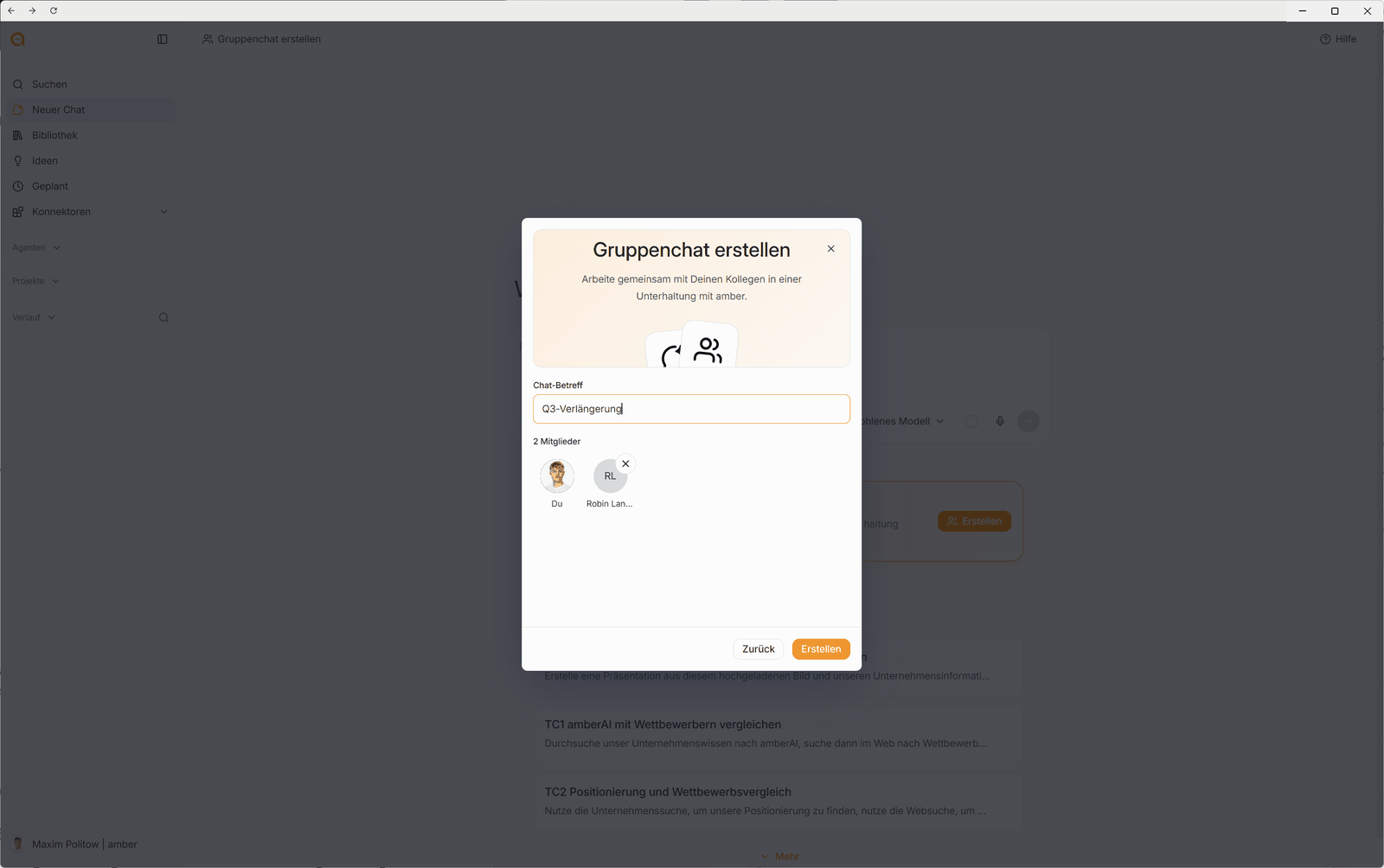
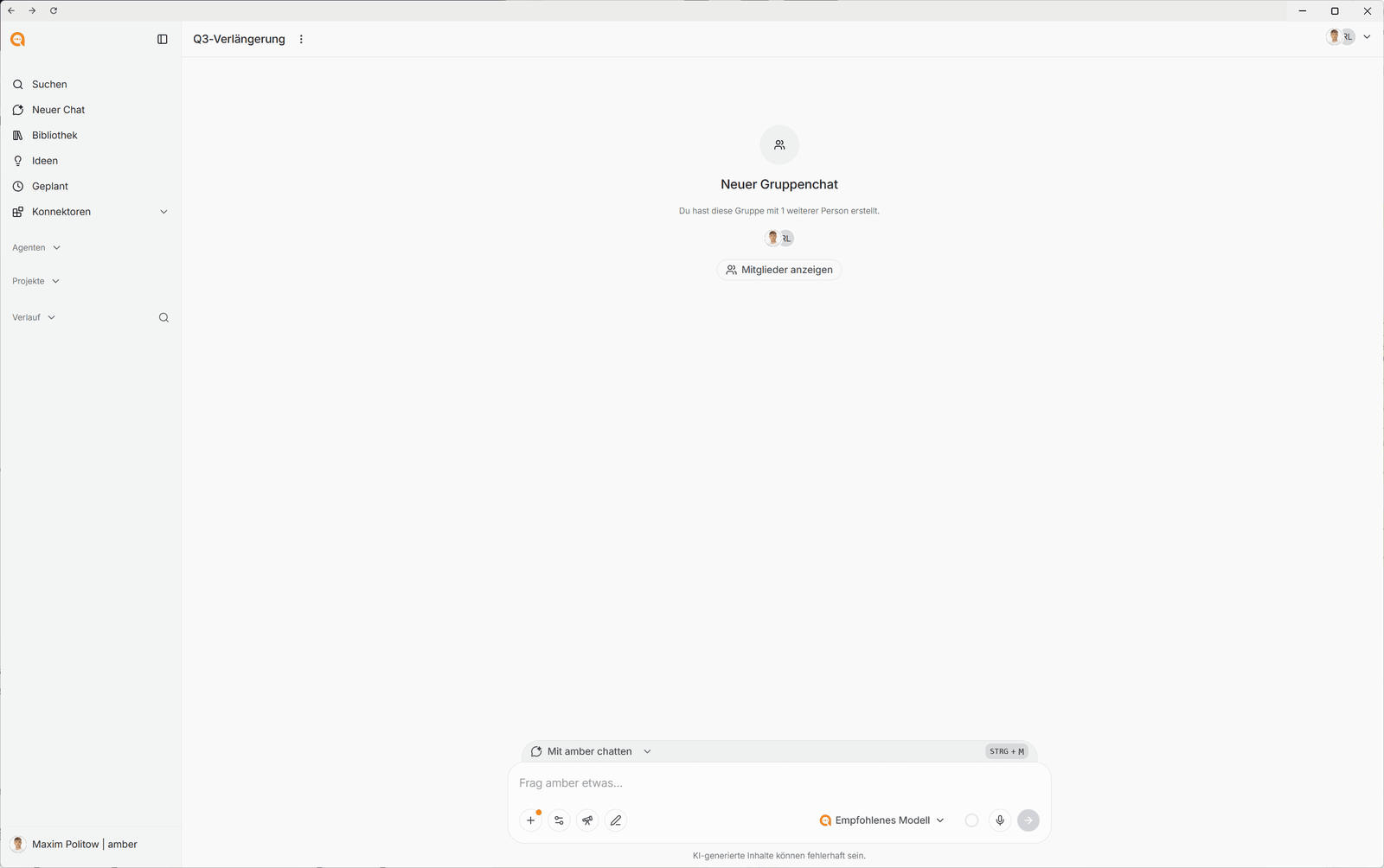
Enter a Chat subject, for example "Q3 renewal". Use the small × to remove someone.
Click Create.
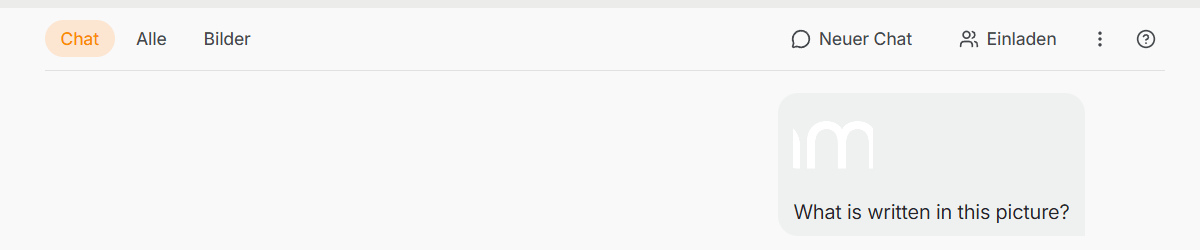
From an existing chat: Click Invite in the top right and select your colleagues. The chat then becomes a group chat.
Step 2: Roles
Step 3: Work in the group chat
Once you've created it, the group chat opens. The subject is at the top, and Show members shows who's in it.
Above the input field, you choose who your message goes to:
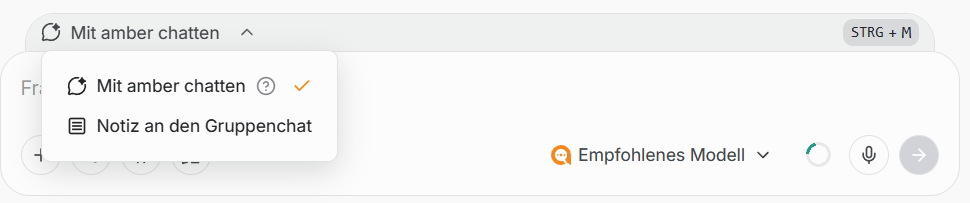
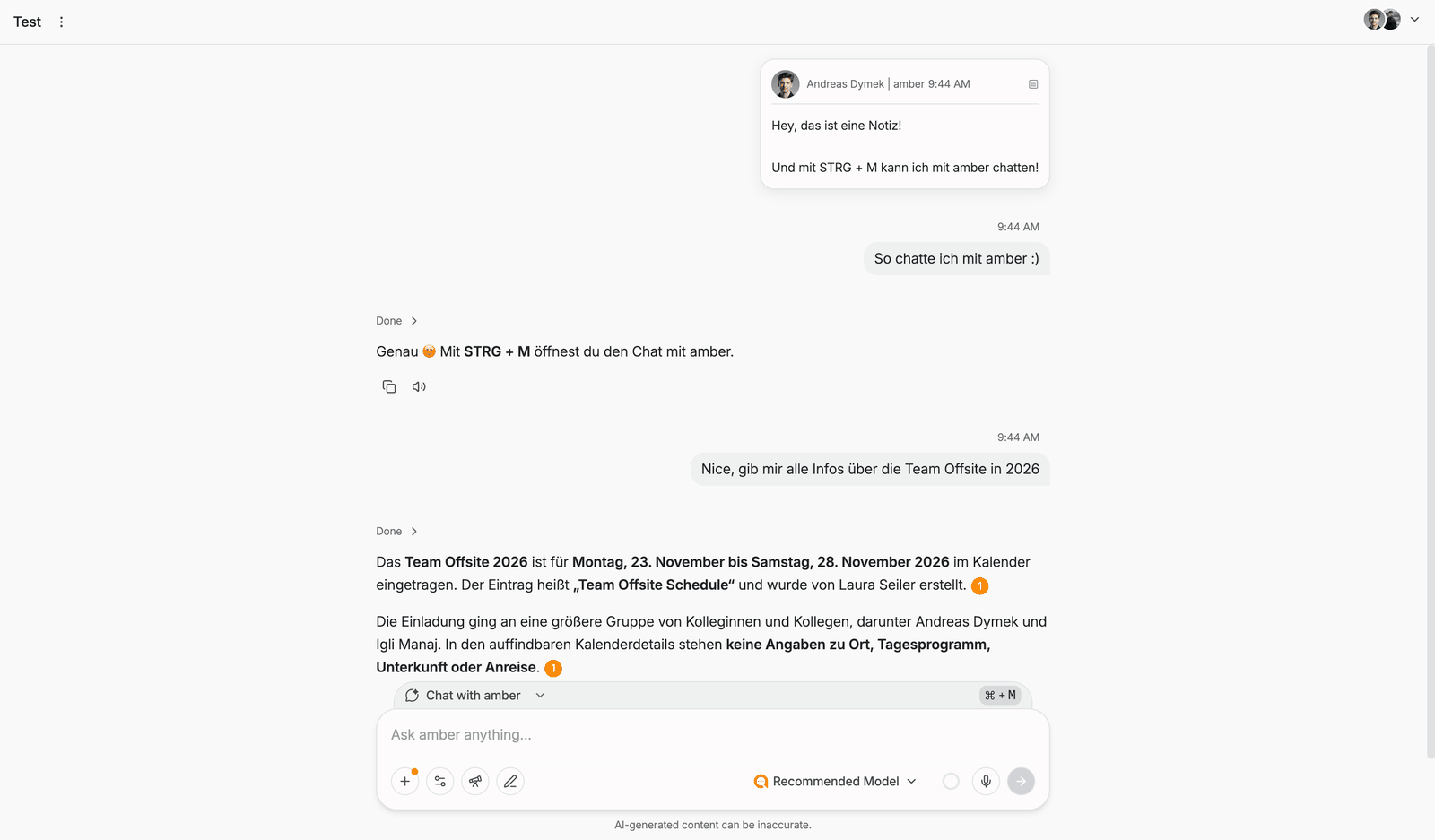
Switch between the modes with CTRL + M (Windows) or CMD + M (Mac). Notes appear in the history as a card with name and time.
Note: Group chats aren't a messenger. Notes are meant for short hints, and you do the actual work together with amber.
Example prompts
"Summarize what we've agreed on so far and list the open points."
"Search our documents for everything on the contract with customer X and summarize the notice periods."
"Turn our discussion into an agenda for Friday's customer meeting."
Group chat or shared chat?
More on sharing: Pinning chats and sharing them with colleagues
FAQ
How do I add someone later? Owners and moderators invite more people via Invite in the top right.
Why can't amber find a document in the group chat that I can find elsewhere? amber only searches content that all members can access. If one member lacks access, the document is left out.
Was this helpful?